Software-OK
≡... News | ... Home | ... FAQ | Impressum | Contact | Listed at | Thank you |

  
HOME ► Windows 11 - Explorer ► «««« 07 / 20 »»»»

Old Explorer from 21H1, 21H2 (Build 22000.168) Windows 11 available again!


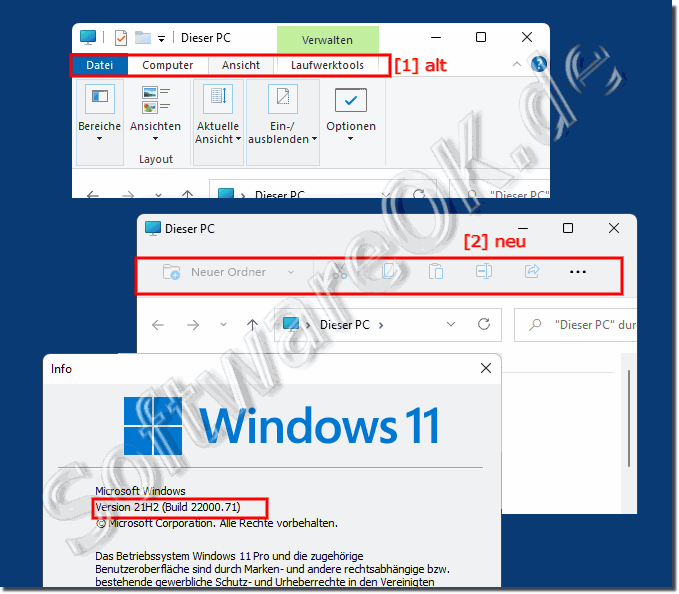
The old Explorer from version 21H2 (Build 22000.71) Windows 11 is not available, it was still available until the update!


The new file explorer works the same way, but has no ribbons / tabs!

( ... see Image-1 Point 1 and 2 ) 

See: ►►►►  Use the old File Explorer under Windows 11?

Compared to Windows 10 File Explorer, the new one in Windows 11 has a greatly simplified toolbar. The complex, subdivided ribbon interface with tabs for the options file, edit, view, ... etc. is gone. There are a number of simple icons that you can use to perform basic tasks such as creating new folders, copying, pasting, renaming, deleting, ... or sorting the icons!
 
See also: CTRL + ALT + DEL when logging on to Windows 11 !


(Image-1) Old Explorer and new Explorer Windows 11!
Old Explorer and New Explorer Windows 11!

-
▲ Back to the top ▲


Updated on: 27 August 2023 06:12 Windows
Keywords: old, file, explorer, from, version, 21h2, build, windows, 11, available, update


Similar information on the page

Windows

... What are blue double arrows in File Explorer Windows 11, 10?


If you see the blue double arrows in the file explorer under Windows 11 or 10 next to the folders in the right corner, it is the right question At first
Windows

... Where can I clear File Explorer history on Windows 11?


You can delete the history in the file explorer at any time under Windows 11, 10, MS OS in order not to leave any folder history traces on the computer
Windows

... File Explorer search with and without subfolders in Windows 11


It is easy to start the file explorer search with and without subfolders in Windows 11 Contents: 1. File Explorer Search with and without sub-folders
Windows

... Windows 11 and Click Sound for Navigation in File-Explorer 


Even under Windows 11, the click sound is pleasant when navigating in the file explorer, when new folders are opened, or when moving forward and backward
Windows

... Windows 11 the folder options in the file explorer


Also in Windows 11 the folder options in the file explorer are an important point of the MS Windows operating system   Content: 1. Quickly find the
Windows

... Open the old context menu in MS Windows 11


So that it is possible to continue using your own entries in the context menu, Microsoft has provided additional options for calling up the old context menu
Windows

... Deactivate / activate status bar in File Explorer Windows 11


The status bar in the file explorer of Windows 11 can be easily deactivated / activated, the information it shows is not worth mentioning anyway Contents:


▲ Back to the top ▲


APPs # Beginner # Desktop # Explorer # Filesystem # How-To # Install # Network # Power-Options # Print # Quick-Tip # Screenshots # Settings # Shortcuts # Start # System # User # Window #


Questions for this:
  1. Have some features been removed from Windows 11's File Explorer?
  2. Is there a way to customize the new File Explorer in Windows 11?
  3. Can I change the display options in File Explorer on Windows 11?
  4. Is there a way in Windows 11 to scale the icons in File Explorer?
  5. Is there a way to use the old File Explorer on Windows 11?
  6. Is there an option in Windows 11 to sort icons in File Explorer?
  7. How can I quickly create a new folder in Windows 11?
  8. On Windows 11, can I customize the icons in the File Explorer toolbar?
  9. What does the toolbar look like in Windows 11's new File Explorer?
  10. Why was the ribbon interface in File Explorer removed from Windows 11?
  11. How can I access the old Explorer in Windows 11 from version 21H2 (Build 22000.168) again?
  12. Has the File Explorer UI been simplified in Windows 11?
  13. Have features been removed or added in Windows 11's new File Explorer?
  14. Does the new File Explorer in Windows 11 offer the same features as the old one?
  15. How can I quickly copy and paste files and folders on Windows 11?
  16. Can I still create, copy, paste, rename, and delete new folders on Windows 11?
  17. How can I sort and filter files on Windows 11?
  18. Does Windows 11's new File Explorer offer a better user experience than the old one?
  19. What features are missing from Windows 11's new File Explorer compared to Windows 10?
  20. How is the File Explorer interface in Windows 11 different from the one in Windows 10?
  21. Can I rearrange the icons in the File Explorer toolbar on Windows 11?
  22. Is there a way to customize the File Explorer interface on Windows 11?
  23. Can I still change the view in File Explorer on Windows 11?
  24. What basic tasks can I perform in the new Windows 11 File Explorer?
  25. Is there a way to customize the icons in Windows 11's new File Explorer?
  26. Why does the new File Explorer in Windows 11 have no ribbons/tabs?
  27. What customization options does Windows 11 File Explorer offer compared to Windows 10?
  28. Why did Microsoft decide to remove the ribbon interface in File Explorer from Windows 11?
  29. Has the performance of File Explorer been improved in Windows 11 compared to Windows 10?
  30. In Windows 11, is there a way to group the files and folders in Explorer?
  31. Is there a way to recover the complex ribbon interface with tabs in Windows 11's File Explorer?
  32. How do I rename files on Windows 11?
  33. What are the benefits of the simplified toolbar in Windows 11 File Explorer?


  + Freeware
  + Order on the PC
  + File management
  + Automation
  + Office Tools
  + PC testing tools
  + Decoration and fun
  + Desktop-Clocks
  + Security

  + SoftwareOK Pages
  + Micro Staff
  + Freeware-1
  + Freeware-2
  + Freeware-3
  + FAQ
  + Downloads

  + Top
  + Desktop-OK
  + The Quad Explorer
  + Don't Sleep
  + Win-Scan-2-PDF
  + Quick-Text-Past
  + Print Folder Tree
  + Find Same Images
  + Experience-Index-OK
  + Font-View-OK


  + Freeware
  + OK.Its.Raining.Men
  + Run-Command
  + MagicMouseTrails
  + CpuFrequenz
  + MultiClipBoardSlots
  + OnlyStopWatch
  + KeepMouseSpeedOK
  + NonCompressibleFiles
  + 4ur-Windows-8-Mouse-Balls
  + PAD-s


Home | Thanks | Contact | Link me | FAQ | Settings | Windows 10 | gc24b | English-AV | Impressum | Translate | PayPal | PAD-s

 © 2026 by Nenad Hrg ERR2: softwareok.de • softwareok.com • softwareok.com • softwareok.eu
68.458 msec.


>> ☕ Buy SoftwareOK a Coffee ☕ <<


► This might take a few minutes on Windows 11? ◄
► Windows Z menu as an alternative to the Windows X menu (10, 8.1, 7)! ◄
► File sorting influence chronologically yourself in the File-Explorer views! ◄
► From-Tray feature to get a Windows Desktop Color! ◄


This website does not store personal data. However, third-party providers are used to display ads,
which are managed by Google and comply with the IAB Transparency and Consent Framework (IAB-TCF).
The CMP ID is 300 and can be individually customized at the bottom of the page.
more Infos & Privacy Policy

....