
It's easy to make an administrator account to a standard user on Windows 10/11 Home and Pro, and vice versa!
If you need to allow or restrict user control on your PC, you can do this quickly by changing the account type. No Windows 10/11 manual is required to learn how to do it on Windows 10. Everyone knows the local user and group manager who is not included in the home version, or how to activate the system administrator , but it is even easier if you only want to convert / restrict an existing administrator back to the standard user !
Content:
1.) ... Make the administrator account a standard user in Windows 11 and 10!
2.) ... The administrator account becomes a standard user in Windows 11 and 10 with a difference!
3.) ... Why make the administrator account a standard user in Windows 11 and 10?
1.) Make the administrator account a standard user in Windows 11 and 10!
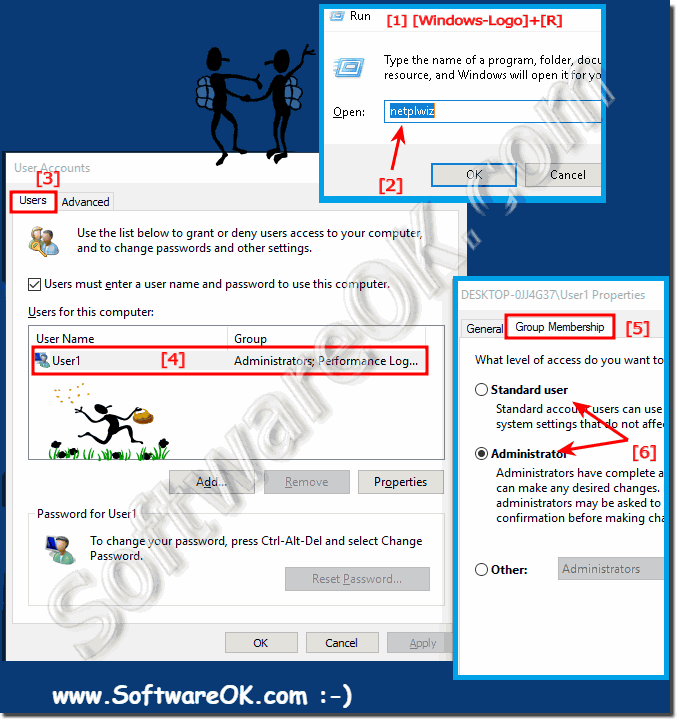
1. Use the key combination Windows Key + R to open Run.2. Enter the command netplwiz
3. Select the Administrator user account
4. Tap the Properties button .
5. Click the Group Membership tab .
6. And make the administrator to standard user.
See also ►► Quickly create User via command prompt!
| (Image-1) Make an administrator account to a standard user on Windows 10! |
 |

Info:
Everyone knows that Windows 10 offers two main types of accounts for users, including administrator and standard user, each with different permissions for using a PC. The administrator allows complete control. This means that users can change settings globally, install apps, perform elevated tasks, and do pretty much anything else.
On the other hand, the standard user account type is more restrictive. Users with this type of account can work with apps, but are not allowed to install new apps. You can change settings, but only settings that do not affect other accounts. When an app needs a raise, they need administrator credentials to complete the task.
Everyone knows that Windows 10 offers two main types of accounts for users, including administrator and standard user, each with different permissions for using a PC. The administrator allows complete control. This means that users can change settings globally, install apps, perform elevated tasks, and do pretty much anything else.
On the other hand, the standard user account type is more restrictive. Users with this type of account can work with apps, but are not allowed to install new apps. You can change settings, but only settings that do not affect other accounts. When an app needs a raise, they need administrator credentials to complete the task.
2.) The administrator account becomes a standard user in Windows 11 and 10 with a difference!
In Windows 11 and 10, you can convert the administrator account to a standard user account by assigning administrator privileges to a new or existing user and demoting the original administrator account. Here are the steps:Note: Make sure you have a different administrator account as you may need to log out of the administrator account you want to change.
Windows 11:
Press the Win + X key combination and select “Settings” from the context menu.
Go to “Accounts” and then “Family and other users.”
Select the administrator account you want to demote.
Click “Change Account Type” and select “Standard User.”
Windows 10:
Click the Windows Start menu and select Settings (gear icon).
Go to “Accounts” and then “Your Information.”
Under “Add a local user or administrator,” select “Add another user.”
Add a new user with administrative rights.
Click “Change Account Type” and select “Standard User.”
After you complete these steps, the original administrator account has been demoted and the new or existing user now has standard user rights. Make sure you have the necessary permissions to make these changes.
3.) Why make the administrator account a standard user in Windows 11 and 10?
Downgrading the administrator account to a standard user account in Windows 11 and 10 is a security measure intended to reduce the risk of unauthorized changes to the system. Here are some reasons why you might consider doing this:Security: The administrator account generally has full permissions to make changes to the system. If your account is accidentally taken over by malware or malware, the consequences could be serious. By downgrading to a standard user account, you reduce the risk of malicious activity having widespread impact.
Principle of Least Privilege: The Principle of Least Privilege (PoLP) states that a user should only have the rights necessary to perform their tasks. A standard user account has more limited rights compared to an administrator account and can therefore minimize potential security risks.
Avoid accidental changes: As a standard user, you are less likely to accidentally change system files or settings, which could cause problems. Administrators have the ability to change or delete important system components, which may cause malfunctions.
Protection against certain attacks: Some types of malware and attacks require elevated privileges to spread through the system or cause damage. By downgrading the account, you can reduce the potential for such attacks.
It is important to note that this is a security measure, but it can also bring some inconvenience as you may be asked for elevated privileges every time you need to make system changes. Therefore, make sure you have another administrator account to perform administrative tasks when necessary.
