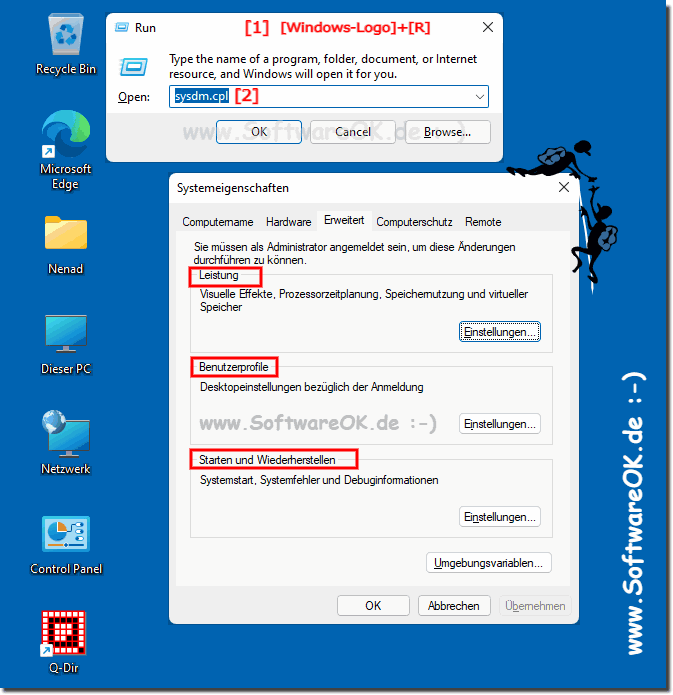
1.) Windows 11 / 12 and the move of the advanced system settings!
Even though Microsoft made some changes to the user interface and settings in Windows 11 / 12. The Advanced System Settings found in older versions of Windows have been largely integrated into the new Windows 11 / 12 settings.
You can access these settings by opening the Start menu, clicking the gear icon (Settings), and then selecting the options you want in Settings.
Many of the advanced system settings from previous versions of Windows have been divided into different categories in Windows 11 / 12. You'll find options for System Settings, Devices, Personalization, Updates & Security, Apps, Network & Internet, and other settings.
The exact structure and available options may change slightly depending on the Windows 11 / 12 update, so I recommend digging into Settings to find the system tweaks and settings you want. In most cases, however, you should no longer need special "Advanced System Settings" as the most important system settings are available directly in Windows 11 / 12 Settings.
2.) Open the classic advanced system settings!
1. Keyboard shortcut Windows + R
2. the command sysdm.cpl
3. And simply use the “Advanced Settings” in Windows 11 / 12
Here you will find, among other things:
Performance: Visual effects, processor scheduling, memory usage and virtual memory User profiles: Desktop settings related to login Startup and recovery: System startup, system errors and debug information Environment variables...!
3.) More tips and information about the advanced system settings on Windows 11 / 12!
Advanced system settings in Windows 11 / 12 are a collection of configuration options that allow you to make deeper customizations to your operating system. Here are some of the most important advanced system settings in Windows 11 / 12:
Performance options:
You can adjust your system's performance by optimizing things like visual effects and background services. This also includes options such as prioritizing processors or energy management.
Advanced system settings:
Here you can change the computer name, workgroup name and domain name. These settings are useful when using your system on a network.
System Restore:
You can create restore points here to be able to restore your system to an earlier point in case of problems.
Advanced startup options:
This includes startup settings, which allow you to enable things like Safe Mode.
Privacy:
Here you can manage your privacy settings, including control over app permissions and access to camera, microphone, and location.
System Information:
This section provides detailed information about your system, including hardware and installed software.
User Profiles:
Here you can manage user profiles, including setting up accounts and assigning profile paths.
Please note that the exact path to these advanced system settings may vary in Windows 11 / 12 as the user interface and menu structures may change from Windows version to Windows version. You can typically access these settings by pressing the Windows key, searching for "System Settings" or "Advanced System Settings," and then selecting the appropriate options.
FAQ 266: Updated on: 7 September 2024 09:37Windows
Can You Use Windows 11 with an Offline Account? Yes ✅ Guide for Home & Pro. Pros Privacy vs. Cons No Sync + Switching Between Microsoft and Local Accounts.
Notepad in Windows 11 now has tabs, dark mode & auto-save 🚀 Released September 2023. Learn about new features, usability tips & if its reason to switch to Windows 11.
Its certainly frustrating when older PCs are no longer compatible with the latest operating systems like Windows 11 due to hardware limitations Microsofts
These questions and answers are intended to help users better understand the privacy concerns related to the Windows 11 2024 Update 24H2 and take steps
This website does not store personal data. However, third-party providers are used to display ads, which are managed by Google and comply with the IAB Transparency and Consent Framework (IAB-TCF). The CMP ID is 300 and can be individually customized at the bottom of the page. more Infos & Privacy Policy ....