Software-OK
≡... News | ... Home | ... FAQ | Impressum | Contact | Listed at | Thank you |

  
HOME ► Windows 10 - Power-Options ► «««« 07 / 11 »»»»

Adjusting the maximum processor frequency / performance under Windows!


It's easy to adjust the maximum processor frequency / performance under Windows-10, -11, -12, ... and MS Server OS!


To change the maximum frequency / power, click on Edit power plan and then on Change advanced power settings.

1.) ... change the maximum CPU frequency / performance step by step!
2.) ... More tips / information on processor frequency / performance under Windows!


Tip: Read out the CPU frequency correctly under Windows !

1.) Change the maximum CPU frequency / performance step by step!

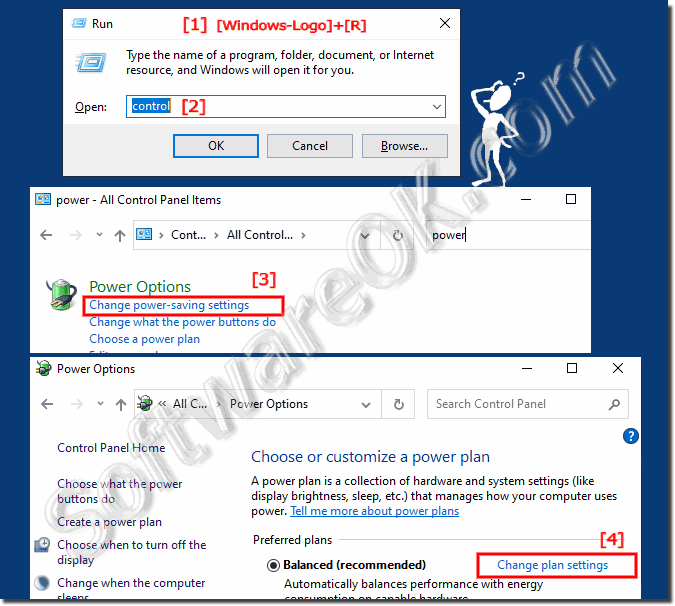
As described here: ►►  Open the current energy plan

1. Go to "Change energy plan settings"

2. Click on "Change plan settings"

(... see Image-1 Point 1  to 4)

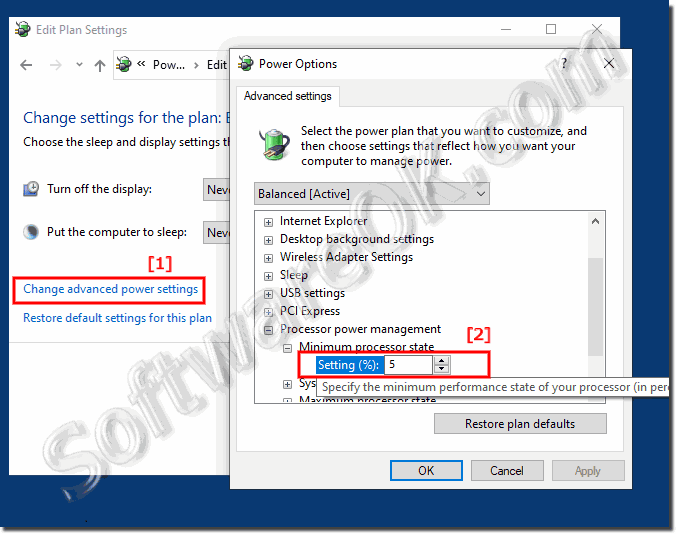
3. Go to "Processor energy management" 

4. Limit the Minimum or maximum processor performance 
(please don't forget to " apply ")

(... see Image-2 Point 1 and 2)


(Image-1) Adjusting the maximum processor frequency / performance under Windows!
Adjusting the maximum processor frequency / performance under Windows!

-
▲ Back to the top ▲


PS:
The maximum processor frequency indicates the operating frequency of the CPU core. The option for the maximum processor frequency is hidden and set to 0 by default. This means your processor is running as fast as it can. Advanced users can slow down the processor when their computer is running hot or using too much power without resorting to Windows power optimization tools!


(Image-2) Set Maximum Minimum Processor performance!
Set Maximum Minimum Processor performance!

-
▲ Back to the top ▲


2.) More tips / information on processor frequency / performance under Windows!

Hibernation is not that different from standby, although it uses even less power. All of your work is saved. It starts up a little slower than PC sleep . Hibernation should be used when you turn off your computer for an extended period of time.

Tips:

► Adjust the maximum processor frequency with Power-Shell!
► Which is better, energy saving mode, balanced and high performance difference!
► No constant frequency with my CPU, why?


PS: 
Even if the idle state saves your work, it is advisable to always save your open work, documents and image processing as often as possible. A hardware failure or a power outage or surge can cause you to lose your job.


Updated on: 7 September 2024 17:28 Windows
Keywords: power, options, adjusting, maximum, processor, frequency, performance, under, windows, 11, 10, change


Similar information on the page

Windows

... Use the PC sleep timer on Windows 10 / 11


Its easy to use a PC sleep timer on Windows 10 / 11 or MS Server 2019, 2016 Info: Everyone knows it, when watching TV in the living room, to fall asleep,
Windows

... Recognize the CPU load through individual programs and APPs


It is easy to recognize the CPU load caused by individual programs and APPs in Windows 10/11 A very important point in terms of better energy efficiency
Windows

... Prevent unwanted restart of Windows 10 / 11 / 12 after downloading updates?


Is it easy to prevent unwanted Windows-10, -11 and -12 restart after downloading updates ? You dont need any famous tools like Dont Sleep to solve this
Windows

... High battery consumption from Windows 10, improve battery life


Yes, the higher battery consumption for laptops notebooks is an unpleasant thing, even on Windows 10 after update Here are a few points that could reduce
Windows

... Open the power options in Windows 10/11


Power Options is a settings page where you can change the power plan and adjust the screen brightness on your computer You do not need a tutorial or X methods
Windows

... The screen saver is missing in the control panel, find it quickly


It is easy to quickly find the screen saver in the control panel on MS Desktop PCs and Microsoft Web Server 2019, If you want to adjust the screen saver
Windows

... Windows 10 / 11 goes to sleep too early


The simple solution if Windows 10 or 11 goes to sleep too early on Home and Pro version There are a few things to check, starting with checking your hibernation


▲ Back to the top ▲


11 # APPs # Beginner # Desktop # Download # Explorer # File-System # Folder # Hardware # Install # Internet # Media # Monitor # Network # Office # Power-Options # Printer # Quick-Tip # Registry # Search # Security # Settings # Shortcuts # Software # Sound # Store # System # Tips # Update # User #


Questions for this:
  1. Where do I change the processor frequency in Windows 12 power settings?
  2. How can I increase the maximum CPU performance in Windows 11?
  3. Where can I find the maximum processor frequency in Windows 10?
  4. How do I change the maximum processor frequency in Windows 12?
  5. How can I adjust the maximum processor performance in Windows 10?
  6. What changes to the processor frequency in Windows 10 are advisable?
  7. What are the options for maximum CPU performance in Windows 11?
  8. How do I limit the maximum CPU performance in Windows 10?
  9. Where can I find the maximum CPU performance settings in Windows 10?
  10. How do I adjust maximum processor frequency in Windows 11 to avoid overheating?
  11. How to change processor frequency in Windows 11 power settings?
  12. How do I optimally set the maximum processor frequency in Windows 10?
  13. What are the steps to change the maximum processor performance in Windows 11?
  14. How to change maximum CPU performance in Windows 11?
  15. What are the options for maximum processor frequency in Windows 10?
  16. Where can I find the maximum processor performance option in Windows 12?
  17. What is the best method to adjust processor frequency in Windows 10?
  18. What steps are required to adjust the maximum CPU performance in Windows 11?
  19. How can I effectively regulate processor frequency in Windows 10?
  20. How to increase maximum CPU performance in Windows 10?
  21. How can I adjust the processor frequency in Windows 11?
  22. How do I make sure maximum CPU performance is set optimally in Windows 11?
  23. What are the benefits of reducing the maximum CPU performance in Windows 10?
  24. How can I check and adjust the maximum processor performance in Windows 12?
  25. How do I adjust the processor frequency in Windows 11? What is the difference between maximum processor performance and maximum CPU performance in Windows 12?
  26. What are the consequences of reducing maximum processor performance in Windows 11?
  27. How to configure maximum processor performance in Windows 10?
  28. How to adjust maximum CPU performance in Windows 12?
  29. What impact does setting maximum processor frequency have on performance in Windows 12?
  30. How to set maximum processor frequency in Windows 12?
  31. What are the steps to change the maximum processor performance in Windows 12?
  32. Where can I find the maximum processor frequency in Windows 11?
  33. What are the best practices to adjust the processor frequency in Windows 12?
  34. How can I optimize the maximum CPU performance in Windows 11?
  35. What steps are required to change maximum processor performance in Windows 12?
  36. What do I need to do to reduce maximum CPU performance in Windows 12?
  37. How to configure maximum CPU performance in Windows 10?
  38. How does maximum processor performance affect Windows 10 performance?
  39. What steps are required to change maximum CPU performance in Windows 12?
  40. How to change CPU frequency in Windows 10?
  41. What is the difference between maximum CPU performance and maximum processor frequency in Windows 12?
  42. How to set maximum processor frequency in Windows 11?
  43. How do I reset the CPU frequency in Windows 12?
  44. How do I set the maximum CPU performance in Windows 10?
  45. What are the effects of adjusting maximum processor frequency in Windows 11?
  46. How do I reduce the maximum processor performance in Windows 12?
  47. How to change the maximum processor frequency in Windows 11 without additional tools?
  48. Where can I find maximum CPU performance in Windows 11 power settings?


  + Freeware
  + Order on the PC
  + File management
  + Automation
  + Office Tools
  + PC testing tools
  + Decoration and fun
  + Desktop-Clocks
  + Security

  + SoftwareOK Pages
  + Micro Staff
  + Freeware-1
  + Freeware-2
  + Freeware-3
  + FAQ
  + Downloads

  + Top
  + Desktop-OK
  + The Quad Explorer
  + Don't Sleep
  + Win-Scan-2-PDF
  + Quick-Text-Past
  + Print Folder Tree
  + Find Same Images
  + Experience-Index-OK
  + Font-View-OK


  + Freeware
  + AutoPowerOptionsOK
  + OneLoupe
  + TraceRouteOK
  + GetWindowText
  + AutoHideMouseCursor
  + Desktop.Calendar.Tray.OK
  + OK.Its.Raining.Men
  + Run-Command
  + MagicMouseTrails
  + PAD-s


Home | Thanks | Contact | Link me | FAQ | Settings | Windows 10 | gc24b | English-AV | Impressum | Translate | PayPal | PAD-s

 © 2026 by Nenad Hrg ERR2: softwareok.de • softwareok.com • softwareok.com • softwareok.eu
167.605 msec.


>> ☕ Buy SoftwareOK a Coffee ☕ <<


► The remote desktop port in Windows? ◄
► Update Windows 8 to Windows 8.1 for free (upgrade)! ◄
► Windows 8.1 / 10 How can I get back to extra large thumbnail view in ? ◄
► Windows 8.1 or 10 to Extend test period in or delay activation tool! ◄


This website does not store personal data. However, third-party providers are used to display ads,
which are managed by Google and comply with the IAB Transparency and Consent Framework (IAB-TCF).
The CMP ID is 300 and can be individually customized at the bottom of the page.
more Infos & Privacy Policy

....