Software-OK
≡... News | ... Home | ... FAQ | Impressum | Contact | Listed at | Thank you |

  
HOME ► Windows 11 - Explorer ► «««« 03 / 20 »»»»

Properties of the Recycle Bin on Windows 11!


Little help to quickly open and adjust the properties of the recycle bin on Windows 11!


Contents:

1.) ... properties of the recycle bin on Windows 11!
2.) ... What needs to be taken into account in relation to the properties of the Recycle Bin and their pitfalls!
3.) ... Do other operating systems also have something like the Windows 11 recycle bin?

1.) Recycle Bin properties on Windows 11!


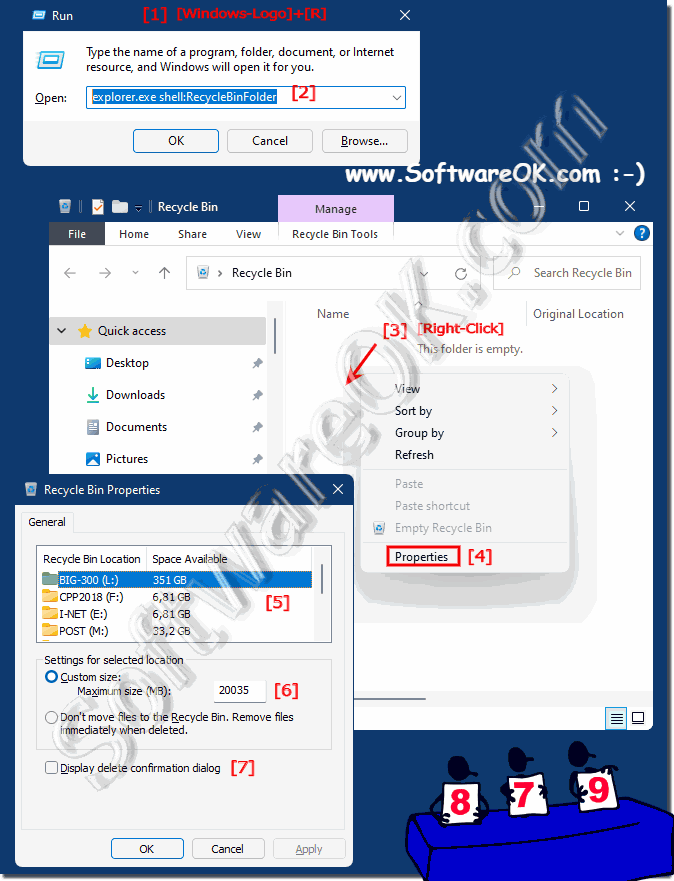
1. Simply shortcut Windows + R

2. With explorer.exe shell:RecycleBinFolder directly to the recycle bin 

3. Right click in the free area and on properties

4. Adjust the Windows 11 recycle bin

(... see Image-1 Point 1 to 7)

Tip:► In Windows 11 Switch to old Explorer!


If you have placed the recycle bin on the desktop, you can also open the properties by right-clicking on the recycle bin desktop symbol! Which is also very practical, provided the trash symbol is activated!

►► Customize which desktop icons are displayed under Windows 11!


(Image-1) Properties of the Recycle Bin on Windows 11!
Properties of the Recycle Bin on Windows 11!

-
▲ Back to the top ▲


2.) What needs to be taken into account in relation to the properties of the  Recycle Bin and their pitfalls!

When adjusting the Recycle Bin properties on Windows 11, there are a few things to keep in mind to avoid potential pitfalls:

1. Recycle Bin Size:

Please make sure that the maximum recycle bin size is set accordingly. If the Recycle Bin is too small, older deleted files can be automatically deleted to make room for new files.

2. Empty Trash automatically:

Check whether the option to empty the Trash automatically is enabled and whether the settings meet your needs. When the Trash is automatically emptied, deleted files can be permanently removed without your consent.

3. Delete files immediately:

If the “Delete files immediately without moving them to Recycle Bin” option is enabled, note that deleted files will not be moved to Recycle Bin and cannot be recovered. Make sure you only enable this option if you are sure you want to permanently remove deleted files.

4. Custom Settings:

Review any custom settings you have made and make sure they meet your needs and preferences. An incorrectly configured Recycle Bin can lead to unexpected data loss.

5. Monitor levels:

Keep an eye on the trash level and empty it regularly to free up space on your hard drive. An overfilled Trash can affect your system's performance and cause unexpected problems.

By paying attention to these points, you can ensure that the Recycle Bin properties on Windows 11 are optimally configured and avoid unexpected pitfalls.


-
▲ Back to the top ▲

3.) Do other operating systems also have something like the Windows 11 recycle bin?

Yes, other operating systems have similar concepts to the Recycle Bin in Windows. Here are examples for other operating systems:

1. MacOS:

MacOS has the “Recycle Bin”, which behaves similarly to Windows. By default, deleted files are moved to the Recycle Bin and can be restored from there. The user can empty the Recycle Bin regularly to free up hard drive space.

2. Linux:

Linux does not typically have a default “recycle bin” like Windows or macOS does. Deleted files are often deleted immediately and permanently, although some desktop environments and file managers may provide the option to move deleted files to a "recycle bin" before final deletion.

3. Android:

Android devices have a similar mechanism to the Recycle Bin, but it may vary depending on the manufacturer and version of the operating system. Deleted files are often stored in a temporary “recycle bin” or “recycle bin” from which they can be restored or permanently deleted.

Overall, most operating systems have a similar concept to the Recycle Bin to temporarily store deleted files and give the user the option to restore them or delete them permanently. However, the exact implementation may vary depending on the operating system.


-
▲ Back to the top ▲


Updated on: 2 May 2024 20:25 Windows
Keywords: explorer, properties, recycle, windows, 11, quickly, open, adjust, simply, recyclebin, folder, directly


Similar information on the page

Windows

... Recycle-Bin, delete with and without confirmation on Windows 11


Simply activate or deactivate the dialog for confirming the deletion process on the new Microsoft Windows 11   Open the recycle bin of Windows 11 in the
Windows

... Where can I clear File Explorer history on Windows 11?


You can delete the history in the file explorer at any time under Windows 11, 10, MS OS in order not to leave any folder history traces on the computer
Windows

... Open the old context menu in MS Windows 11


So that it is possible to continue using your own entries in the context menu, Microsoft has provided additional options for calling up the old context menu
Windows

... Windows 11 and Click Sound for Navigation in File-Explorer 


Even under Windows 11, the click sound is pleasant when navigating in the file explorer, when new folders are opened, or when moving forward and backward
Windows

... How do I open This PC instead of Quick Access in File Explorer?


Even under Windows 11, it is easy to set this PC as the default folder in the file explorer instead of quick access 1. In new Windows 11 Explorer
Windows

... Deactivate / activate status bar in File Explorer Windows 11


The status bar in the file explorer of Windows 11 can be easily deactivated / activated, the information it shows is not worth mentioning anyway Contents:
Windows

... Delete confirmation Windows 11


In order to get the deletion confirmation displayed under Windows 11 before the deletion process is started, you have to activate or deactivate the display 



▲ Back to the top ▲


APPs # Beginner # Desktop # Explorer # Filesystem # How-To # Install # Network # Power-Options # Print # Quick-Tip # Screenshots # Settings # Shortcuts # Start # System # User # Window #


Questions for this:
  1. Can I set the Recycle Bin on Windows 11 to delete only certain types of files?
  2. Can I configure the Recycle Bin on Windows 11 to empty automatically?
  3. Are files permanently deleted when I empty the Recycle Bin on Windows 11, or can I restore them?
  4. How does the customization of Recycle Bin properties change between Windows 10 and Windows 11?
  5. Are deleted files permanently removed from the hard drive on Windows 11, or can they be recovered?
  6. Are there any known issues or errors that you may encounter when adjusting Recycle Bin properties on Windows 11?
  7. How do changes to Recycle Bin properties affect the Windows 11 user experience?
  8. Are there any specific settings I can make for better Recycle Bin performance on Windows 11?
  9. How do I open Properties from Recycle Bin on Windows 11?
  10. Can I also change the properties of the Recycle Bin on Windows 11 from the Control Panel?
  11. Are there any keyboard shortcuts to quickly access the properties of the Recycle Bin on Windows 11?
  12. Can I also completely disable the Recycle Bin on Windows 11?
  13. Does Windows 11 offer additional features to manage the Recycle Bin compared to previous versions?
  14. How does changing Recycle Bin properties affect data security on Windows 11?
  15. How often should I empty the Recycle Bin on Windows 11 to optimize system performance?
  16. Can I change Recycle Bin settings on Windows 11 through the Registry?
  17. What security aspects should be considered when adjusting the Recycle Bin properties in Windows 11?
  18. What are the benefits of customizing Recycle Bin properties on Windows 11 compared to the default?
  19. Which files are moved to the Trash by default, and can I change this setting?
  20. Can I configure the Recycle Bin on Windows 11 to automatically delete certain files?
  21. How do I get to the Recycle Bin Properties window on Windows 11 from the context menu?
  22. Are there any ways to optimize Recycle Bin performance on Windows 11?
  23. What options are available to customize Recycle Bin properties on Windows 11?
  24. Are the Recycle Bin settings optimally set by default on Windows 11?
  25. How can I customize the Recycle Bin view options on Windows 11?
  26. Are there any alternative methods to customize the properties of the Recycle Bin on Windows 11?
  27. Are there any risks if I change the default Recycle Bin settings on Windows 11?
  28. How do Recycle Bin properties on Windows 11 differ from older versions of Windows?
  29. How do changes to Recycle Bin properties affect system performance on Windows 11?
  30. What are the steps required to customize the Recycle Bin on Windows 11?
  31. Can I manually set the size of the Recycle Bin on Windows 11?
  32. How to customize Recycle Bin on Windows 11 to save disk space?
  33. What is the impact of deleting files from the Recycle Bin on disk space consumption on Windows 11?


  + Freeware
  + Order on the PC
  + File management
  + Automation
  + Office Tools
  + PC testing tools
  + Decoration and fun
  + Desktop-Clocks
  + Security

  + SoftwareOK Pages
  + Micro Staff
  + Freeware-1
  + Freeware-2
  + Freeware-3
  + FAQ
  + Downloads

  + Top
  + Desktop-OK
  + The Quad Explorer
  + Don't Sleep
  + Win-Scan-2-PDF
  + Quick-Text-Past
  + Print Folder Tree
  + Find Same Images
  + Experience-Index-OK
  + Font-View-OK


  + Freeware
  + TraceRouteOK
  + GetWindowText
  + AutoHideMouseCursor
  + Desktop.Calendar.Tray.OK
  + OK.Its.Raining.Men
  + Run-Command
  + MagicMouseTrails
  + CpuFrequenz
  + MultiClipBoardSlots
  + PAD-s


Home | Thanks | Contact | Link me | FAQ | Settings | Windows 10 | gc24b | English-AV | Impressum | Translate | PayPal | PAD-s

 © 2025 by Nenad Hrg ERR2: softwareok.de • softwareok.com • softwareok.com • softwareok.eu
57.148 msec.


>> ☕ Buy SoftwareOK a Coffee ☕ <<


► Should I rather use a large or small digital desktop clock? ◄
► Safely remove hardware does not work!  ◄
► I would like to reduce the dimensions of all photos from a folder? ◄
► The 10 Best PowerShell Commands for Windows Server? ◄


This website does not store personal data. However, third-party providers are used to display ads,
which are managed by Google and comply with the IAB Transparency and Consent Framework (IAB-TCF).
The CMP ID is 300 and can be individually customized at the bottom of the page.
more Infos & Privacy Policy

....