Software-OK
≡... News | ... Home | ... FAQ | Impressum | Contact | Listed at | Thank you |

  
HOME ► Windows 11 - Explorer ► «««« 05 / 20 »»»»

Old File Explorer Windows 11 Desktop Shortcut!


It is quite easy to create a desktop shortcut for the old File Explorer in Windows 11!


►►►►► Old Explorer from version 21H2 (Build 22000.71) Windows 11 not available!

Content:

1.) ... Creating the shortcut on the Windows 11 desktop!
2.) ... Start the old File Explorer on Windows 11!
3.) ... What should I watch out for when starting File Explorer!


See also: ►  Quad Explorer for Windows 11!

1.) Creating the shortcut on the Windows 11 desktop!

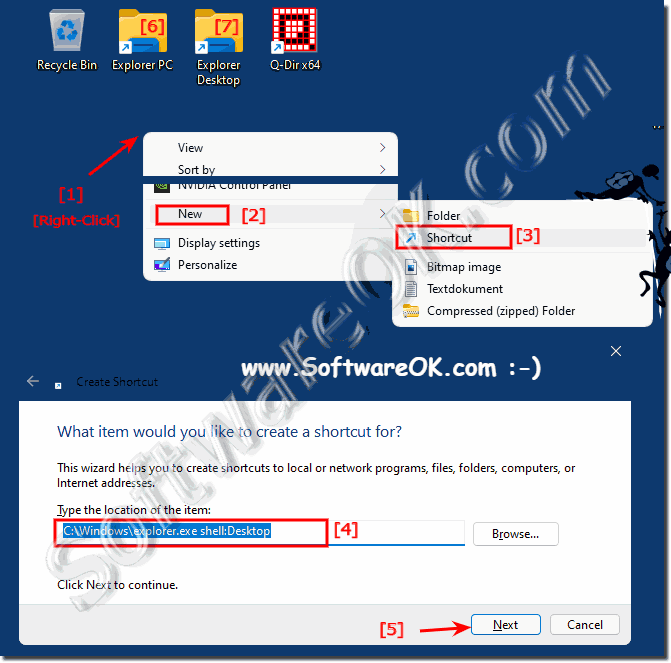
1. Right click on the Desktop

2. This PC:  explorer.exe shell:computer or desktop  explorer.exe shell:desktop use

3. And next then simply Explorer PC and Explorer desktop as a name to use

(... see Image-1 Point 1  to 7)

 
How to use the newly created shortcuts:


After you create the shortcuts, you can use them to quickly access the old File Explorer:

- Double-click the "Explorer PC" shortcut to open File Explorer in "This PC" mode.

- Double-click the "Explorer Desktop" shortcut to open File Explorer in "Desktop" mode.

Through these steps, you can easily access the old File Explorer depending on whether you want to use File Explorer in "This PC" or "Desktop" mode.


Use newly created links ►►  .. to start the old File Explorer! 

(Image-1) Create Old File Explorer Windows 11 Desktop Shortcut!
Create Old File Explorer Windows 11 Desktop Shortcut!

-
▲ Back to the top ▲


2.) ... Start the old File Explorer on Windows 11! 

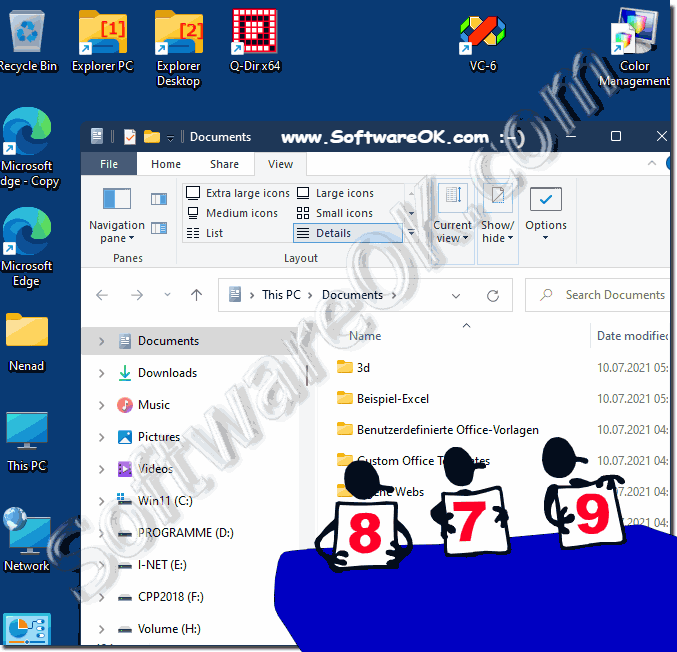
Use one of the desktop shortcuts on the Windows 11 desktop to start the old file explorer!

( ... see Image-2 Point 1 to 3 )

(Image-2) Old File Explorer Windows 11 Desktop Shortcut!
Old File Explorer Windows 11 Desktop Shortcut!

-
▲ Back to the top ▲


3.) What should I watch out for when starting File Explorer!

Actually, there is nothing great to note except that you can use all functions of the Windows 10 file explorer!

See also: ►   Find the Windows 10/11 product key using the command prompt!


When launching File Explorer on Windows 11, there are a few things to keep in mind to ensure the best possible experience:

1. Check file paths and shortcuts:

Make sure you are using the correct file paths or shortcuts to start File Explorer. This can be done from the Start menu, taskbar, desktop, or search.

2. Customize Folder View:

Review the folder view settings to make sure they meet your needs. You can customize the view by level of detail, sort order, grouping of items, and other criteria.

3. Use Quick Access:

Use the Quick Access feature to quickly reach frequently used folders and files. You can simply drag and drop files and folders into Quick Access or add them by right-clicking and selecting "Pin to Quick Access."

4. Optimize Navigation:

Use the navigation bar to quickly switch between different folders and drives. You can also bookmark or use favorites to quickly reach frequently visited locations.

5. Use keyboard shortcuts:

Learn keyboard shortcuts to increase efficiency when navigating File Explorer. For example, you can use Ctrl + C and Ctrl + V to copy and paste files, or use Ctrl + D to delete files.

6. Be aware of security:

To ensure the safety of your computer, be careful not to open any suspicious files or links in File Explorer. Always scan downloaded files with an antivirus program before opening them.

By following these tips, you can use File Explorer effectively and manage your files and folders safely.


Updated on: 2 May 2024 20:20 Windows
Keywords: old, file, explorer, windows, 11, desktop, shortcut, easy, create, content


Similar information on the page

Windows

... What are blue double arrows in File Explorer Windows 11, 10?


If you see the blue double arrows in the file explorer under Windows 11 or 10 next to the folders in the right corner, it is the right question At first
Windows

... Where can I clear File Explorer history on Windows 11?


You can delete the history in the file explorer at any time under Windows 11, 10, MS OS in order not to leave any folder history traces on the computer
Windows

... File Explorer search with and without subfolders in Windows 11


It is easy to start the file explorer search with and without subfolders in Windows 11 Contents: 1. File Explorer Search with and without sub-folders
Windows

... Show hidden files in Windows 11 File Explorer


A hidden file is a regular file, but it will not be displayed. Hidden files can be displayed and also created normally  Windows 11 has an updated version
Windows

... How do I open This PC instead of Quick Access in File Explorer?


Even under Windows 11, it is easy to set this PC as the default folder in the file explorer instead of quick access 1. In new Windows 11 Explorer
Windows

... Windows 11 the folder options in the file explorer


Also in Windows 11 the folder options in the file explorer are an important point of the MS Windows operating system   Content: 1. Quickly find the
Windows

... Deactivate / activate status bar in File Explorer Windows 11


The status bar in the file explorer of Windows 11 can be easily deactivated / activated, the information it shows is not worth mentioning anyway Contents:


▲ Back to the top ▲


APPs # Beginner # Desktop # Explorer # Filesystem # How-To # Install # Network # Power-Options # Print # Quick-Tip # Screenshots # Settings # Shortcuts # Start # System # User # Window #


  + Freeware
  + Order on the PC
  + File management
  + Automation
  + Office Tools
  + PC testing tools
  + Decoration and fun
  + Desktop-Clocks
  + Security

  + SoftwareOK Pages
  + Micro Staff
  + Freeware-1
  + Freeware-2
  + Freeware-3
  + FAQ
  + Downloads

  + Top
  + Desktop-OK
  + The Quad Explorer
  + Don't Sleep
  + Win-Scan-2-PDF
  + Quick-Text-Past
  + Print Folder Tree
  + Find Same Images
  + Experience-Index-OK
  + Font-View-OK


  + Freeware
  + AutoHideMouseCursor
  + Desktop.Calendar.Tray.OK
  + OK.Its.Raining.Men
  + Run-Command
  + MagicMouseTrails
  + CpuFrequenz
  + MultiClipBoardSlots
  + OnlyStopWatch
  + KeepMouseSpeedOK
  + PAD-s


Home | Thanks | Contact | Link me | FAQ | Settings | Windows 10 | gc24b | English-AV | Impressum | Translate | PayPal | PAD-s

 © 2025 by Nenad Hrg ERR2: softwareok.de • softwareok.com • softwareok.com • softwareok.eu
72.779 msec.


>> ☕ Buy SoftwareOK a Coffee ☕ <<


► Is there also a way to save the position of the sticky notes? ◄
► Automatically log in without removing the pin on Windows 11? ◄
► How to change the Home-Group Password on Windows-7? ◄
► I closed the desktop notes by mistake, what can I do? ◄


This website does not store personal data. However, third-party providers are used to display ads,
which are managed by Google and comply with the IAB Transparency and Consent Framework (IAB-TCF).
The CMP ID is 300 and can be individually customized at the bottom of the page.
more Infos & Privacy Policy

....