Software-OK
≡... News | ... Home | ... FAQ | Impressum | Contact | Listed at | Thank you |

  
HOME ► Windows Images - Q-Dir ► «««« 16 / 24 »»»»

Mark pictures correctly with the keyboard + mouse in File Explorer!


Everyone likes to have everything under control when organizing photos for photo management by marking them correctly in folder albums!


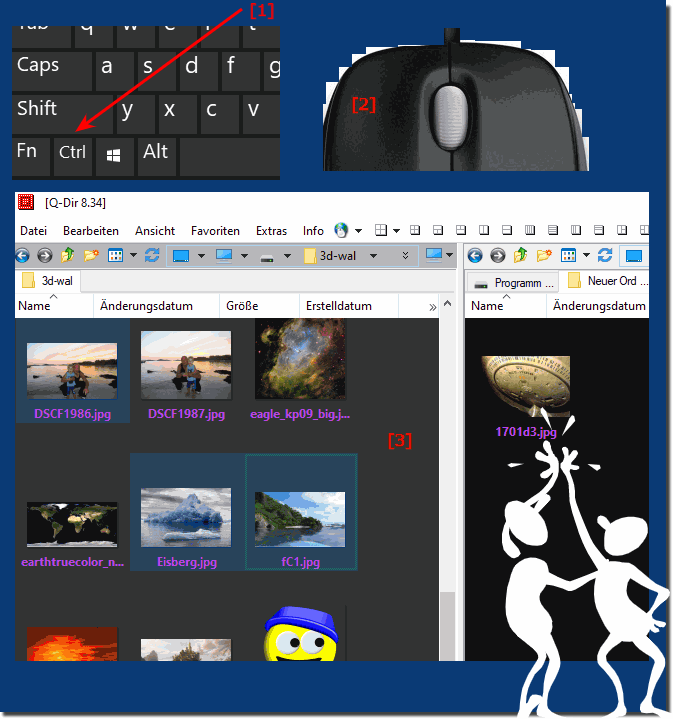
Skillful marking of the pictures is important in order to be able to mark the corresponding pictures in the correct order by clicking on each picture while holding down the Ctrl key or holding the mouse down and moving over the pictures. The selected images are then highlighted in blue! Is easy the free alternative Explorer for all Windows OS! 
 

Contents:
1.) ... How to mark pictures with the keyboard and mouse!
2.) ... What should I consider when marking the pictures with the keyboard and mouse!

1.) How to mark pictures with the keyboard and mouse!

With the keyboard you can also mark pictures effectively, with the help of the CTRL + mouse click
Please hold down the CTRL key and click on the files with the left mouse button. 

The first click on a file is for selection, the second click is to deactivate (deselect) ) the image file!

(Image-4) Mark pictures with keyboard and mouse!
Mark pictures with keyboard and mouse!

-
▲ Back to the top ▲


2.) What should I consider when marking the pictures with the keyboard and mouse!


The first object always comes first in the order, which does not make much difference when marking the images for moving, copying or deleting, but it is important for the browser upload to understand the marking and the order.

However, some internet platforms do it in the reverse order, exactly the opposite of what you intended in your marking order. So just mark it in the reverse order.

See also: Should I use 1, 2, 3 or 4 File Explorer, which is better?  


But usually it is not a problem to mark the pictures with the keyboard and mouse, it is one of the preferred methods for marking pictures / photos, since one benefits from the advantages of both peripheral devices, the marking is very quick and easy with this to learn!


Updated on: 9 September 2023 10:50 Windows
Keywords: images, mark, pictures, correctly, with, keyboard, mouse, file, explorer, everyone, likes, have, everything, under, control, when, organizing, photos, photo, management, marking, them, folder, albums, skillful


Similar information on the page

Windows

... Activate the checkbox to mark pictures


Activating the checkboxes for marking pictures is very popular in File Explorer and not only suitable for advanced users Optionally, the check box for marking
Windows

... Print photo overview in File Explorer


You can easily print a photo overview in File Explorer, such as via the thumbnails in Q-Dir on all MS Windows Desktop and Server OS 1. As always, start
Windows

... Mark the whole line in Q-Dir, the Quad-Explorer


In order to activate or deactivate the marking of the whole line in the individual file explorer, you do not need any registry changes or MS Windows OS system
Windows

... No sorting when renaming the files in File Explorer


It is easy to avoid the sorting when renaming the files in File Explorer if you simply deactivate it, why not if it is possible in Q-Dir on MS Windows 11,
Windows

... Make the pictures evaluation in the alternative Explorer under Windows


It is easy to do the picture evaluation in the alternative Explorer under Windows   Users who use the Windows File Explorer are a little overwhelmed with
Windows

... Mark / Select image files in the File Explorer view


Marking photos or pictures correctly and quickly is an important task when managing pictures   A marker is not only needed for the double image search,
Windows

... How to control the mouse cursor with keyboard under Windows 11, 10, 8.1, 7


With a wireless mouse, there are often situations where batteries will fail and you will lose control of the cursor. In this case it becomes necessary to


▲ Back to the top ▲


See also : ... Q-Dir FAQ
Back to : ... Q-Dir Homeage

... Q-Dir Tip


4ur-Windows-8-Mouse-Balls # AutoHideDesktopIcons # ClassicDesktopClock # Delete.On.Reboot # DesktopDigitalClock # DesktopSnowOK # ExperienceIndexOK # Find.Same.Images.OK # FontViewOK # IsMyHdOK # KeepMouseSpeedOK # MagicMouseTrails # MeinPlatz # PointerStick # Q-Dir # QuickTextPaste # Run-Command # TheAeroClock # WinScan2PDF #


  + Freeware
  + Order on the PC
  + File management
  + Automation
  + Office Tools
  + PC testing tools
  + Decoration and fun
  + Desktop-Clocks
  + Security

  + SoftwareOK Pages
  + Micro Staff
  + Freeware-1
  + Freeware-2
  + Freeware-3
  + FAQ
  + Downloads

  + Top
  + Desktop-OK
  + The Quad Explorer
  + Don't Sleep
  + Win-Scan-2-PDF
  + Quick-Text-Past
  + Print Folder Tree
  + Find Same Images
  + Experience-Index-OK
  + Font-View-OK


  + Freeware
  + 12-Ants
  + Q-Dir
  + DirPrintOK
  + FontViewOK
  + MeinPlatz
  + DesktopOK
  + IsMyMemoryOK
  + StressTheGPU
  + Brightness.Manager.OK
  + PAD-s


Home | Thanks | Contact | Link me | FAQ | Settings | Windows 10 | gc24b | English-AV | Impressum | Translate | PayPal | PAD-s

 © 2025 by Nenad Hrg ERR2: softwareok.de • softwareok.com • softwareok.com • softwareok.eu
56.542 msec.


>> ☕ Buy SoftwareOK a Coffee ☕ <<


► IIS Web Server on Windows 10 / 11! ◄
► See all system components under Windows 11, 10, 8.1, ...! ◄
► Download free Windows 10/11 Terminal! ◄
► At incorrect time Change the time zone in Windows 10/11! ◄


This website does not store personal data. However, third-party providers are used to display ads,
which are managed by Google and comply with the IAB Transparency and Consent Framework (IAB-TCF).
The CMP ID is 300 and can be individually customized at the bottom of the page.
more Infos & Privacy Policy

....