Software-OK
≡... News | ... Home | ... FAQ | Impressum | Contact | Listed at | Thank you |

  
HOME ► Windows 11 - Quick-Tip ► «««« 11 / 26 »»»»

Prevent Windows 11 from turning off your screen!


Sometimes you want the screen to stay on and not go off in Windows 11 because you don't want your screen to turn off automatically!


1.) ... If the screen goes off too quickly!
2.) ... What should I consider and other related tips!


3.) ... If the screen goes out quickly, further explanations!
4.) ... Could it be a defective screen or something else?


You do not have to immediately access practical third-party tools such as DontSleep or Monitor Turn Off Timer, even if they are elegant solutions, you can do it in a few simple steps -monitor goes off too quickly- Problem under Windows 11 in the twinkling of an eye!

1.) If the Windows 11 screen goes off too quickly!

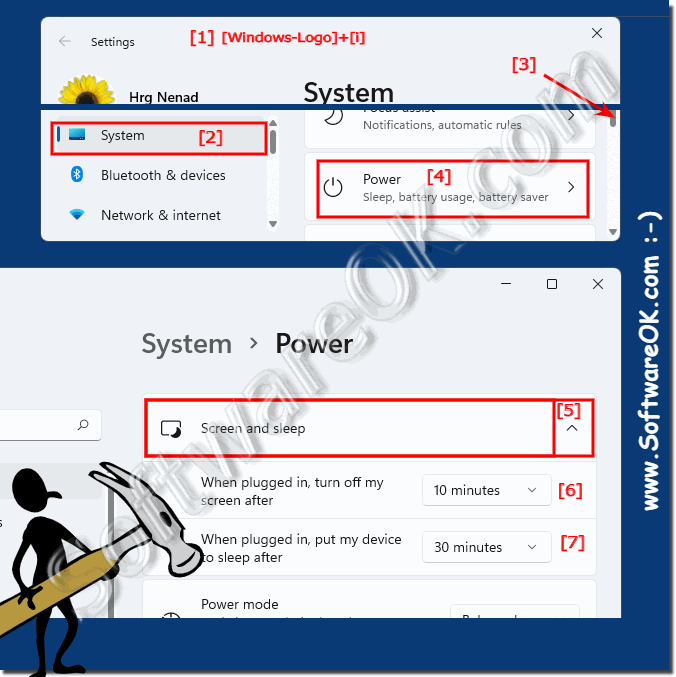
1. Start the Windows 11 settings ( Windows + i )

2. Go to ►  system

3. Scroll to the right to ►  Power

4. Switch the screen and sleep 

6. And you determine when the Windows 11 Screen should go off or never!

(... see Image-1 Point 1  to 7)

PS:
If your PC goes into automatic sleep mode, the screen also switches off, which is also logical, because no image signal is sent when Windows 11 is in the Idle mode changes. You can also set at this point when your Windows PC goes to sleep. (Point 7)


(Image-1) Prevent Windows 11 from turning off your screen!
Prevent Windows 11 from turning off your screen!

-
▲ Back to the top ▲


2.) What should I consider and other related tips!


As you can see, it is possible to completely prevent the screen from turning off, you can select various settings, please note that if your PC / laptop is running on battery power and it is not connected to a power source, the battery life will be reduced!

For best results, you should only leave the screen switched on when it is connected. If you do this on battery power, the battery will run out quickly.


More tips:

► Use the external monitor with the notebook closed under Windows 10/11!
► Position the second monitor correctly under Windows 10!
► What is the difference between a screen and a monitor?
► How do I recognize a defective pixel on the LCD monitor?


3.) If the screen goes out quickly, further explanations!


To prevent Windows 11 from turning off your screen, you can adjust the Screen Time and Power Saver settings. Here are some steps you can take:
 
Change power settings:
 
Right-click the battery icon in the taskbar and select "Power Options."
 
Select the power plan you are using (e.g. Balanced or High Performance).
Click "Change power plan settings."
 
Make sure that "Turn off displays" and "Turn off computer" are set to a sufficient amount of time before the screen or computer goes to sleep. You can adjust these times as needed.
 
 
Disable power saving mode:
 
Go to "Settings" (Win + I), select "System" and then "Power and Energy Saving."
Make sure the "Save Energy" slider is set to "Never" or another desired time value.
 
 
Prevent automatic locking:
 
Go to "Settings" (Win + I) and select "Accounts" then "Sign in Options".
Under “Login Options” you will find the screen lock settings. Make sure this is set to "Never" or a longer period of time.
 
 
Disable the screen saver:
 
Go to "Settings" (Win + I) and select "Personalization" and then "Screen Saver".
Make sure the screen saver is disabled or that the wait time before the screen saver starts is set to a high value.
These steps should help stop your screen from automatically turning off in Windows 11.


4.) Could it be a defective screen or something else?


Yes, it is possible that a screen that turns off unexpectedly indicates a defect or is due to other problems. Here are some possible causes of a screen that turns off unexpectedly:
 
Hardware problems: A broken screen, a damaged power cord, or a problem with other hardware components can cause the screen to turn off.
 
Driver problems: Incompatible or outdated drivers can cause problems that cause the screen to turn off.
 
Overheating: Overheating of the computer or screen may cause the device to automatically turn off to prevent damage.
 
Power saving mode: An activated power saving mode can cause the screen to turn off to save energy.
 
Software problems: Software problems, such as faulty programs or viruses, can also cause the screen to turn off unexpectedly.
 
To determine the exact cause of the screen turning off unexpectedly, it may be necessary to perform a thorough diagnosis. This may include checking hardware components, updating drivers, checking for overheating, and running antivirus scans. If the problem persists, it may be advisable to consult a professional to diagnose and fix the problem.


Updated on: 14 March 2024 20:56 Windows
Keywords: quick, prevent, windows, 11, from, turning, your, screen, off, stay, turn, automatically


Similar information on the page

Windows

... Wi-Fi and Wireless display on Windows 11?


The wireless display function under Windows 11 is very convenient and easy to make a presentation on the big TV screen in the living room or in the office
Windows

... Dock the window in the screen area under Windows 11


It is easy to dock windows in the screen area under Windows 11, the function known as snap opens up many options for docking / arranging of windows Everyone
Windows

... New screenshot function under Windows 11 as a screen area


Everyone knows the print key to create screenshots, there is a new screen area screenshot function in Windows 11 as a keyboard shortcut 1. The new
Windows

... Difference between screen keyboard and touch keyboard, Windows 11, 10, ...?


The difference between screen keyboard and touch keyboard under Windows 11, 10, The ►  classic on-screen keyboard and the touchscreen keyboard  are
Windows

... Windows 11: Make the mouse easier to use


Easy use / open in Windows 11 the old classic feature "Make the mouse easier to use" for a better Mouse experience     Content: 1. Windows 11 and easy
Windows

... Time zone settings on MS Windows 11 OS


The time zone settings on MS Windows Desktop 11, 10, and Microsoft Server systems is easy to open and to change In addition to the actual time and date,
Windows

... Adjust sound volume in Windows 11?


The sound volume on Windows 11, its easy to adjust your volume easily 1. Change the system volume via the taskbar 2. Change the system volume


▲ Back to the top ▲


APPs # Beginner # Desktop # Explorer # Filesystem # How-To # Install # Network # Power-Options # Print # Quick-Tip # Screenshots # Settings # Shortcuts # Start # System # User # Window #


Questions for this:
  1. Where do I choose when Windows 11 turns off my screen, don't want to save power?
  2. After Windows 11 update, my monitor and screen turn off automatically, can I set the time period or leave the screen on all the time?
  3. I want the screen never turns off on Windows 11 please?
  4. I don't want to extend the battery life and the life of the screen / monitor, and I also don't want it to turn off automatically after a certain period of time in Windows 11, how do I set it up?
  5. Can I also configure the PC so that it does not go to sleep after a certain period of time, I use a screen saver in Windows 11 that I would like to see?
  6. Time for screen on Windows 11 PC and when to turn off the screen?
  7. On Windows 11 the screen is switched off can I choose this switch-off time for the screen myself?
  8. I don't want to use Screen and Sleep on Windows 11 laptop, want to control how long it takes before your screen turns off?


  + Freeware
  + Order on the PC
  + File management
  + Automation
  + Office Tools
  + PC testing tools
  + Decoration and fun
  + Desktop-Clocks
  + Security

  + SoftwareOK Pages
  + Micro Staff
  + Freeware-1
  + Freeware-2
  + Freeware-3
  + FAQ
  + Downloads

  + Top
  + Desktop-OK
  + The Quad Explorer
  + Don't Sleep
  + Win-Scan-2-PDF
  + Quick-Text-Past
  + Print Folder Tree
  + Find Same Images
  + Experience-Index-OK
  + Font-View-OK


  + Freeware
  + IsMyTouchScreenOK
  + Print.Test.Page.OK
  + OpenCloseDriveEject
  + ColorConsole
  + IsMyLcdOK
  + DesktopDigitalClock
  + ClassicDesktopClock
  + PreventTurnOff
  + QuickMemoryTestOK
  + PAD-s


Home | Thanks | Contact | Link me | FAQ | Settings | Windows 10 | gc24b | English-AV | Impressum | Translate | PayPal | PAD-s

 © 2025 by Nenad Hrg ERR2: softwareok.de • softwareok.com • softwareok.com • softwareok.eu
67.668 msec.


>> ☕ Buy SoftwareOK a Coffee ☕ <<


► Enable standard desktop icons under Windows 11 or 10! ◄
► Possibility to make OWN theme in Q-Dir for Windows? ◄
► Quick Rotate / Flip Desktop Screen via Keyboard Shortcut on Windows 10 and 8.1! ◄
► Find Snipping Tool on Windows 10/11! ◄


This website does not store personal data. However, third-party providers are used to display ads,
which are managed by Google and comply with the IAB Transparency and Consent Framework (IAB-TCF).
The CMP ID is 300 and can be individually customized at the bottom of the page.
more Infos & Privacy Policy

....