Software-OK
≡... News | ... Home | ... FAQ | Impressum | Contact | Listed at | Thank you |

  
HOME ► Windows 10 - Security ► «««« 26 / 29 »»»»

Perform a full system scan under MS Windows 10 or 11!


It's easy to do a full system scan on MS Windows 10 or 11 Home, Pro, ...!


Windows malware is still a major problem. Fortunately for this reason, Microsoft has an antivirus program called Microsoft Defender under Windows 10, 8.1, as well as MS Server 2019, .... It is busy looking for malware, Trojans, worms, ... in the background . However, you can also perform a full system scan with Defender at any time to make absolutely sure that the Windows computer has no malware or malware APPs.

Contents:

1.) ... Start the full system check or scan under MS Windows OS!
2.) ... More tips on system, security, scan ... on Windows!


1.) Start the full system check or scan under MS Windows OS!

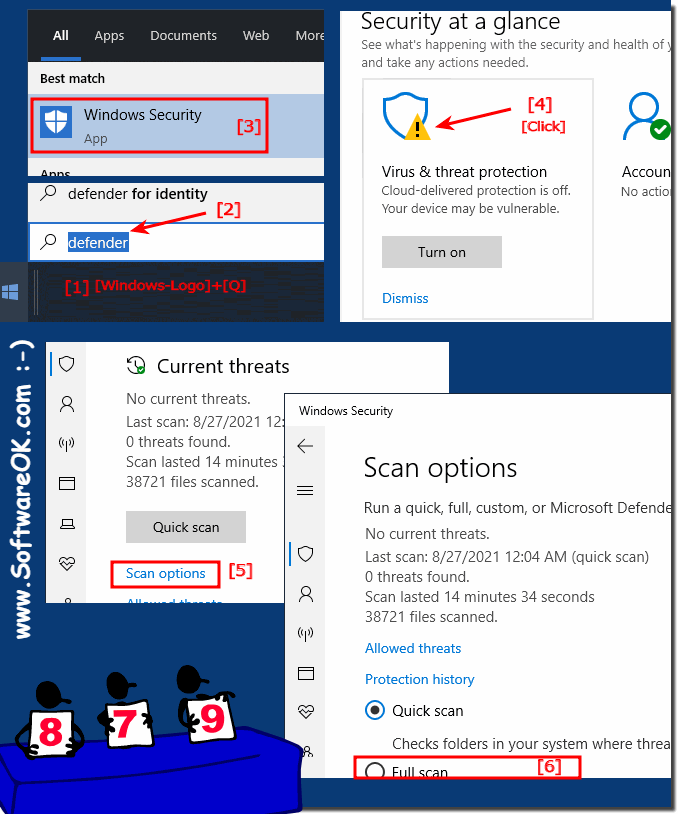
1. Open the Windows Defender / Security Center

2. Click on the Defender symbol 

3. Select "Scan options" and switch to "Full scan" and start the scan 

(... see Image-1 Point 1 to 6)

PS:
The full scan scans all files on your computer and all running programs. The scan can take more than an hour.

In Windows 11: ► Complete test for Windows 11!

(Image-1) Perform a full system scan under MS Windows 10 or 11!
Perform a full system scan under MS Windows 10 or 11!


-
▲ Back to the top ▲


2.) More tips on system, security , scan ... on Windows!

Windows security aspects are very high, a look at the respective function is never wrong, just to know if everything is correct!


►► Create a Security Center shortcut on the Windows desktop!
►► Change ecurity and maintenance settings under Windows 10/11?
►► How do I check if Windows 11 antivirus is active?
►► Windows 11 blocks potentially unwanted apps?


Here are some tips for system maintenance, testing and scanning in Windows!

System Maintenance:

Operating System Updates: Always keep your Windows operating system up to date to close security vulnerabilities and ensure system stability.

Driver software:

Regularly update your drivers, especially for graphics cards, chipsets and network adapters. This can improve system performance and stability.

►►  Why you should update all software

Disk Cleanup:
Use the built-in Windows Disk Cleanup utility to remove temporary files, unnecessary files, and Recycle Bin contents.

►► Does Windows 11 have Disk Cleanup for hard drives?

Defragmentation:
Defragmentation is usually not necessary on modern hard drives, but for older hard drives it can improve performance. Windows occasionally does this automatically.

►► Find Windows 10 / 11 SSD optimization and defragmentation?

System Restore:
Make sure System Restore is enabled to be able to restore your system in the event of an emergency.
►►  The system restore or the restore process takes a long time, why?

System file check:
Run the "sfc /scannow" tool in Command Prompt to check and repair corrupted system files.
►►  If Windows 10/11 crashes, use the system file checker.

Hard drive check:
Use the "chkdsk" tool in the command prompt to check your hard drive for errors and repair it.
Repair bad sectors of hard drive using CMD commands on Windows!


Info:

Keep all installed programs, browsers and extensions up to date to close security gaps. These tips should help you improve the performance and security of your Windows system and protect it from potential problems.


Updated on: 29 September 2023 12:37 Windows
Keywords: security, perform, full, system, scan, under, windows, easy, home


Similar information on the page

Windows

... Change or Set a new password under Windows 10/11


Its easy to set a new password on Windows 10/11, whether on the desktop computer, laptop, surface, or notebook Setting a password is possible in Windows
Windows

... Can I disable the SmartScreen filter on Windows 10?


The solution is very easy to deactivate the SmartScreen Filter under Windows 10 and reactivate it if is necessary You do not always disable the SmartScreen
Windows

... Check if all folders enjoy virus protection under Windows 10


Its easy to check if all folders enjoy the Defender virus protection on Windows 10 There may be a possibility to use the Malicious Software Removal Tool
Windows

... Permanently disable Windows 10 Defender


The solution is very easy to permanently disable the Windows 10 Defender, especially those who want to have the full PC performance and experience, can do
Windows

... Block APPs and desktop programs under Windows 10 prevent them from starting


Without much effort, you can block MS Store apps and desktop programs under Windows 10 so that they can not start The sleek solution is written for Windows
Windows

... Complete check for Trojans, viruses and ransomware, how to


Starting a full scan and search for Trojans, viruses, and or ransomware is useful on Windows 10 It really makes sense to use this simple yet effective tool
Windows

... The computer was protected by Windows - turn it off deactivate


It is easy to turn off or disable the message "The computer was protected by Windows" User Account Control is an important component of the  Windows 10


▲ Back to the top ▲


11 # APPs # Beginner # Desktop # Download # Explorer # File-System # Folder # Hardware # Install # Internet # Media # Monitor # Network # Office # Power-Options # Printer # Quick-Tip # Registry # Search # Security # Settings # Shortcuts # Software # Sound # Store # System # Tips # Update # User #


  + Freeware
  + Order on the PC
  + File management
  + Automation
  + Office Tools
  + PC testing tools
  + Decoration and fun
  + Desktop-Clocks
  + Security

  + SoftwareOK Pages
  + Micro Staff
  + Freeware-1
  + Freeware-2
  + Freeware-3
  + FAQ
  + Downloads

  + Top
  + Desktop-OK
  + The Quad Explorer
  + Don't Sleep
  + Win-Scan-2-PDF
  + Quick-Text-Past
  + Print Folder Tree
  + Find Same Images
  + Experience-Index-OK
  + Font-View-OK


  + Freeware
  + Q-Dir
  + DirPrintOK
  + FontViewOK
  + MeinPlatz
  + DesktopOK
  + IsMyMemoryOK
  + StressTheGPU
  + Brightness.Manager.OK
  + PaintOkay
  + PAD-s


Home | Thanks | Contact | Link me | FAQ | Settings | Windows 10 | gc24b | English-AV | Impressum | Translate | PayPal | PAD-s

 © 2025 by Nenad Hrg ERR2: softwareok.de • softwareok.com • softwareok.com • softwareok.eu
60.206 msec.


>> ☕ Buy SoftwareOK a Coffee ☕ <<


► Quad Explorer List View Use Color Filter! ◄
► Full switch off for grouping in Explorer list views, permanent disable! ◄
► Windows 11 fonts and fonts folder? ◄
► Easy Turn Off and On the Lock Screen with NoLockScreen.OK! ◄


This website does not store personal data. However, third-party providers are used to display ads,
which are managed by Google and comply with the IAB Transparency and Consent Framework (IAB-TCF).
The CMP ID is 300 and can be individually customized at the bottom of the page.
more Infos & Privacy Policy

....