Software-OK
≡... News | ... Home | ... FAQ | Impressum | Contact | Listed at | Thank you |

  
HOME ► Windows 10 - Monitor ► «««« 08 / 08 »»»»

How to select a primary monitor on Windows 10/11?


If you use more than one monitor, choose a primary one so your main workspace is in front of you!


Contents:

1.) ... Changing the primary monitor!
2.) ... Why is it important to select the monitor correctly?


See also: ► Place the  second monitor correctly under Windows 10!

1.) Changing the primary monitor!

1. Start Windows 10 Settings  (using the Windows + i  shortcut key)

2. Type  "Display" and select "Change display orientation"

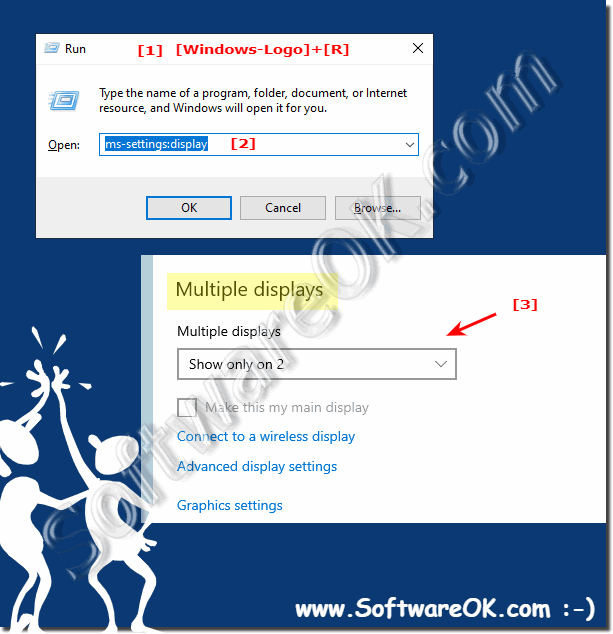
1+2b. Optional Windows + R command: ms-settings:display

3. Scroll down to "Multiple displays" 

4. And please enable "This display use as main display"

(... see Image-1 Point 1 to 3) 


PS: With Windows 11 the look is different but it works the same!

(Image-1) Select a primary monitor on Windows 11 or 10!
Select a primary monitor on Windows 11 or 10!

-
▲ Back to the top ▲


2.) Why is it important to select the monitor correctly?


Using multiple monitors is very common these days. They are more or less mandatory for the designers and those who code or build websites. If you use more than one monitor, choose a primary one so that your main workspace is in front of you and not on the left or right monitor. 

Related Links:

►► What is the difference between screen and monitor?
►► What screen frequency does my Windows 11, 10, ... monitor have?
►► Why replace / update the old computer monitor?
►► Prevent Windows 11 from turning off your screen!
►► Lock screen use your own picture on Windows!


You can change the primary monitor in your Windows operating system settings if you want another monitor to take on this role. This can be useful if, for example, you want to use a specific monitor as your main workspace or if the arrangement of monitors in your Windows 11 / 10 work environment requires a different order.


Updated on: 22 September 2023 04:35 Windows
Keywords: monitor, select, primary, windows, more, than, choose, your, main, workspace, front, contents, changing


Similar information on the page

Windows

... Use for lock screen own picture on Windows 10/11 via lock screen settings


You can easily use your own picture / photo ergo images on the lock screen under Windows 10/11 Home and Pro Everyone probably knows how to customize the
Windows

... Only use the external monitor on the Surface Pro or laptop at Win 10/11


It is easy to use only the external monitor on the Surface Pro, or laptop under Windows 10 and 11   Content: 1. Only use the external monitor 2.
Windows

... Brightness adjustment Windows 10/11, without screen control?


Under Android and Appels iPhone there is the night mode and since Android 7.0 under Windows 10/11 there is also the brightness setting A handy feature that
Windows

... Quick Rotate / Flip Desktop Screen via Keyboard Shortcut on Windows 10 and 8.1


The solution Quick Rotate Desktop via Keyboard Shortcut on Windows 10 and 8.1 and MS Server OS It may have happened during such an action or maybe you just
Windows

... The screen goes off too fast and on the Windows 10/11 PC, why?


If the screen goes too fast again on or off the Windows 10/11 PC it could be due to the mouse You do not have to instantly access practical third party
Windows

... External monitor, work with closed lid on notebook under Windows 10/11


For external monitor and closed notebook / laptop, you can continue to work under Windows 11, 10, 8.1, when close the lid Many Windows users connect
Windows

... Select Multiple Files or Folders in Windows Explorer, Windows 10


It is quite easy to select multiple files or folders in Windows Explorer under Windows 10  Select multiple files or folders in MS Windows Explorer. You


▲ Back to the top ▲


11 # APPs # Beginner # Desktop # Download # Explorer # File-System # Folder # Hardware # Install # Internet # Media # Monitor # Network # Office # Power-Options # Printer # Quick-Tip # Registry # Search # Security # Settings # Shortcuts # Software # Sound # Store # System # Tips # Update # User #


  + Freeware
  + Order on the PC
  + File management
  + Automation
  + Office Tools
  + PC testing tools
  + Decoration and fun
  + Desktop-Clocks
  + Security

  + SoftwareOK Pages
  + Micro Staff
  + Freeware-1
  + Freeware-2
  + Freeware-3
  + FAQ
  + Downloads

  + Top
  + Desktop-OK
  + The Quad Explorer
  + Don't Sleep
  + Win-Scan-2-PDF
  + Quick-Text-Past
  + Print Folder Tree
  + Find Same Images
  + Experience-Index-OK
  + Font-View-OK


  + Freeware
  + AlwaysMouseWheel
  + NewFileTime
  + DesktopClock3D
  + PointerStick
  + DesktopImages3D
  + WinPing
  + GetPixelColor
  + StressMyPC
  + DesktopSnowOK
  + PAD-s


Home | Thanks | Contact | Link me | FAQ | Settings | Windows 10 | gc24b | English-AV | Impressum | Translate | PayPal | PAD-s

 © 2025 by Nenad Hrg ERR2: softwareok.de • softwareok.com • softwareok.com • softwareok.eu
52.939 msec.


>> ☕ Buy SoftwareOK a Coffee ☕ <<


► Change Windows print order for programs! ◄
► Easy of Access Center missing on Windows 10/11? ◄
► Copy Paste Text Without Formatting on Windows? ◄
► Write short invitations and reports on Windows 10/11! ◄


This website does not store personal data. However, third-party providers are used to display ads,
which are managed by Google and comply with the IAB Transparency and Consent Framework (IAB-TCF).
The CMP ID is 300 and can be individually customized at the bottom of the page.
more Infos & Privacy Policy

....