Software-OK
≡... News | ... Home | ... FAQ | Impressum | Contact | Listed at | Thank you |

  
HOME ► Windows 10 - Power-Options ► «««« 02 / 11 »»»»

Recognize the CPU load through individual programs and APPs!


It is easy to recognize the CPU load caused by individual programs and APPs in Windows 10/11!


A very important point in terms of better energy efficiency  is the CPU load, luckily you can clearly see the CPU load in Task Manager, which is caused by individual desktop programs and / or MS Store APPs, especially when using Windows 10 on mobile Devices such as MS-Surface, laptops and tablets that should last as long as possible on battery, especially if you let your laptop continue to work when you close the lid!

The burden of the individual programs / applications under Windows 10!

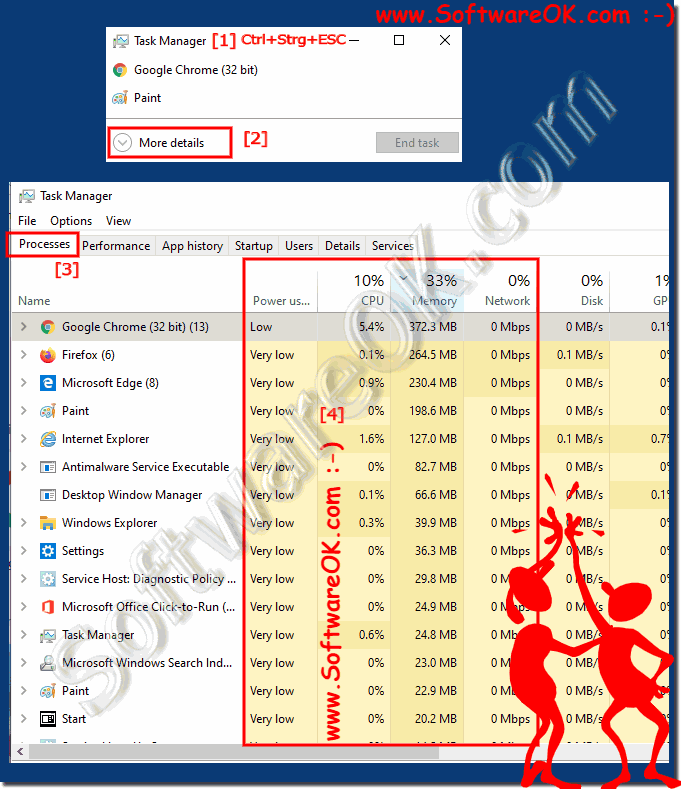
1. Start the Task Manager

2. Activate the option: "More details"

3. Mark the "Processes" tab  

4. In the CPU column, observe the load from the individual processes

(... see Image-1 Point 1 to 4)

(Image-1) Recognize the CPU load through individual programs and APPs!
Recognize the CPU load through individual programs and APPs!


Tip: 

You can start programs with different priority classes , if necessary  , in order to increase energy efficiency, to improve working on battery power, or simply  tame aggressive programs under Windows!

Info:

Set CPU process  priority for applications in Windows 10 to improve processor resources between all running processes based on their priority level. When a process has a higher priority application, it gets more processor resources for better performance than a lower priority process. If you want, you can manually set the priority of processes to run in real time, high, above normal, normal, below normal, or low. Priority level in Windows based on your needs instead of the default priority. The changes you make to the priority level of a process, application, desktop program , ... are only temporary and not permanent.


-
▲ Back to the top ▲


Updated on: 19 July 2021 08:24 Windows
Keywords: power, options, recognize, load, through, individual, programs, apps, windows, 11, 10, important, energy, efficiency


Similar information on the page

Windows

... Standby, hibernation or lock in the start menu


Add or remove hibernation, hibernation or lock to the start menu in Windows-12, -11, -10 1. Opening / activating the energy menu options 2. Changing
Windows

... Windows 10 / 11 computer does not go into standby, why?


What can be the cause that Windows 10 / 11 computer does not go into standby and why also valid for MS Server 2019, Some users report that after a
Windows

... Use the PC sleep timer on Windows 10 / 11


Its easy to use a PC sleep timer on Windows 10 / 11 or MS Server 2019, 2016 Info: Everyone knows it, when watching TV in the living room, to fall asleep,
Windows

... Windows 10 / 11 goes to sleep too early


The simple solution if Windows 10 or 11 goes to sleep too early on Home and Pro version There are a few things to check, starting with checking your hibernation
Windows

... Prevent unwanted restart of Windows 10 / 11 / 12 after downloading updates?


Is it easy to prevent unwanted Windows-10, -11 and -12 restart after downloading updates ? You dont need any famous tools like Dont Sleep to solve this
Windows

... Adjusting the maximum processor frequency / performance under Windows


Its easy to adjust the maximum processor frequency / performance under Windows-10, -11, -12, and MS Server OS To change the maximum frequency / power,
Windows

... High battery consumption from Windows 10, improve battery life


Yes, the higher battery consumption for laptops notebooks is an unpleasant thing, even on Windows 10 after update Here are a few points that could reduce


▲ Back to the top ▲


11 # APPs # Beginner # Desktop # Download # Explorer # File-System # Folder # Hardware # Install # Internet # Media # Monitor # Network # Office # Power-Options # Printer # Quick-Tip # Registry # Search # Security # Settings # Shortcuts # Software # Sound # Store # System # Tips # Update # User #


  + Freeware
  + Order on the PC
  + File management
  + Automation
  + Office Tools
  + PC testing tools
  + Decoration and fun
  + Desktop-Clocks
  + Security

  + SoftwareOK Pages
  + Micro Staff
  + Freeware-1
  + Freeware-2
  + Freeware-3
  + FAQ
  + Downloads

  + Top
  + Desktop-OK
  + The Quad Explorer
  + Don't Sleep
  + Win-Scan-2-PDF
  + Quick-Text-Past
  + Print Folder Tree
  + Find Same Images
  + Experience-Index-OK
  + Font-View-OK


  + Freeware
  + Film.Strip.Explorer
  + WinScan2PDF
  + DontSleep
  + ExperienceIndexOK
  + QuickTextPaste
  + DesktopNoteOK
  + ShortDoorNote
  + AutoHideDesktopIcons
  + BlankAndSecure
  + PAD-s


Home | Thanks | Contact | Link me | FAQ | Settings | Windows 10 | gc24b | English-AV | Impressum | Translate | PayPal | PAD-s

 © 2025 by Nenad Hrg ERR2: softwareok.de • softwareok.com • softwareok.com • softwareok.eu
61.457 msec.


>> ☕ Buy SoftwareOK a Coffee ☕ <<


► What is an illustration? ◄
► Windows x64 operating systems, what´s that? ◄
► Difference bit rate and sample rate (sampling rate)? ◄
► EV and OV code signing? ◄


This website does not store personal data. However, third-party providers are used to display ads,
which are managed by Google and comply with the IAB Transparency and Consent Framework (IAB-TCF).
The CMP ID is 300 and can be individually customized at the bottom of the page.
more Infos & Privacy Policy

....