Software-OK
≡... News | ... Home | ... FAQ | Impressum | Contact | Listed at | Thank you |

  
HOME ► Windows 10 - Desktop ► «««« 19 / 29 »»»»

Monochrome desktop backgrounds on Windows-12, -11 or 10!


It's easy to use solid color desktop backgrounds on Windows-12, -11 and -10, which sometimes makes sense!


Anyone who suffers from eye strain can benefit from simply switching to a single-color desktop background without medical expertise. Sometimes a simple desktop background color is beneficial and can make Windows work more effectively!

 
Content:

1.) ... Switching from desktop backgrounds to one color MS Windows desktop and server!
2.) ... New Solution for the MS Windows 11!

3.) ... What should you pay attention to and the main advantages of desktop backgrounds in one color?
4.) ... Further tips for a tidy desktop under Windows and pitfalls to avoid!


Tip: ►►  Save your desktop icons!

1.) Switching from desktop backgrounds to one color MS Windows desktop and server!


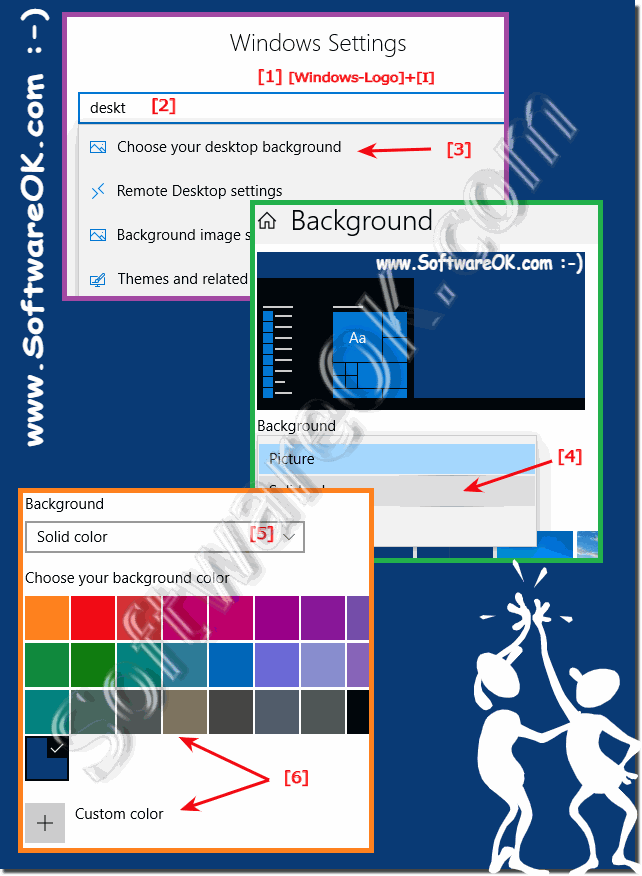
1. Windows + i key combination
2. Enter "desktop"

3. on "Select desktop background"
4. Change from "Image" to "Solid color"

5. Select color
6. or define your favorite background color 

(... see Image-1 Point 1 to 6)

As you can see, no magic is required (or to see the naturopath to get more globules!) To relieve his eyes. 

See also: ► Improve typing and prevent pain, which keyboard? 

In Windows 11 it is optically a little different but works the same way!


(Image-1) Solid color desktop backgrounds on Windows 10!
Solid color desktop backgrounds on Windows 10!

-
▲ Back to the top ▲


2.) New Solution for the MS Windows 11!


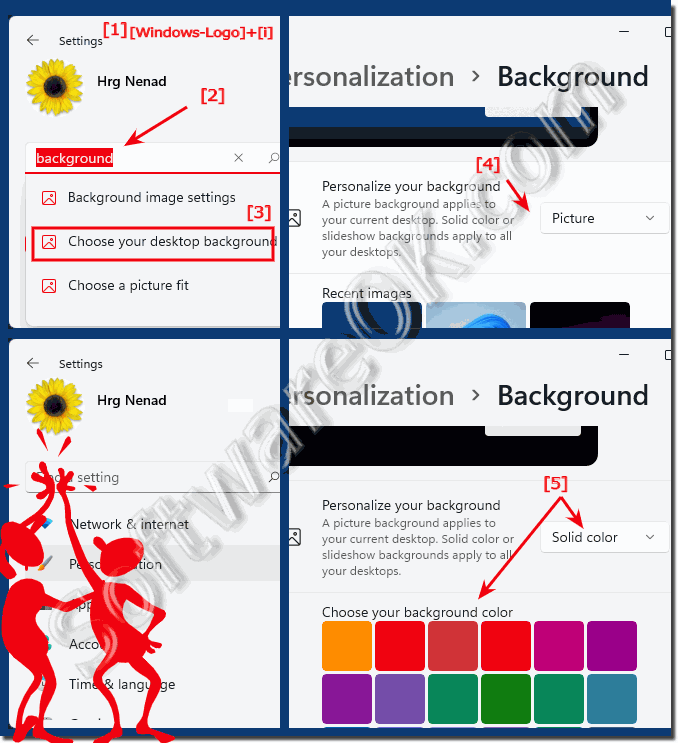
1. Start the Windows 11 settings as usual ( Windows + i )

2. Search for background 

3. Simply  Switch from Picture to Solid Color 

4. And use your Favorite Color 

(... see Image-2 Point 1 to 5)


See also: ►  Hotkey to switch between virtual desktops!

(Image-2) Monochrome desktop backgrounds on Windows 11!
Monochrome desktop backgrounds on Windows 11!

-
▲ Back to the top ▲


3.) What should you pay attention to and the main advantages of desktop backgrounds in one color?

When changing the desktop background to a solid color, there are a few important things to keep in mind:

1. Contrast:

Make sure the color you choose provides enough contrast to the icons, text, and other elements on your desktop. A color that is too light or too dark could affect readability.

2. Eye-friendly:

Choose a color that is easy on the eyes and not too bright or tiring, especially if you work on the computer for long periods of time.

3. Personal Preferences:

Consider your personal preferences and the purpose of the solid color background. Do you want to choose a calming color to increase your productivity or do you prefer a more vibrant color to lift your mood?

4. Work environment:

Think about the context in which you use the computer. For example, if you work in a creative industry, a neutral color like gray or blue might be more appropriate so as not to distract from your work.

The main benefits of a solid color desktop background are:

1. Reduced Distractions:

A solid color background can help minimize distractions because it provides less visual stimulation than a complex image or pattern.

2. Better readability:

A simple background can improve the readability of icons and text on your desktop because they don't have to compete with a complex background pattern.

3. Aesthetic Purity:

A solid color background can create a cleaner and more minimalist aesthetic that some users prefer.

4. Focus on work:

Reducing visual distractions will help you focus better on your tasks and work more productively.


-
▲ Back to the top ▲


4.) Further tips for a tidy desktop under Windows and pitfalls to avoid!

Here are some tips for maintaining a tidy desktop on Windows and pitfalls to avoid:

Tips for a tidy desktop:

1. File organization:

Create folders on your desktop to group similar files. Name the folders appropriately to easily identify the contents.

2. Use of Icons:

Use only the necessary icons on your desktop. Too many icons can seem overwhelming and hinder productivity.

3. Arrange Icons:

Arrange the icons on your desktop in a logical order, e.g. B. by frequency of use or by topics.

4. Desktop Cleanup:

Regularly clean the desktop by deleting unnecessary files and shortcuts or moving them to appropriate folders.

5. Wallpaper:

Choose a wallpaper that isn't too intrusive and doesn't obscure your icons. A minimalist or abstract image can help keep the desktop looking tidy.

Pitfalls to avoid:

1. Too many icons:

Avoid cluttering the desktop with a variety of icons. This can create clutter and make it difficult to find the files you need.

2. Disorganized files:

Don't just leave files on the desktop without sorting them into folders. This can create clutter and reduce efficiency.

3. Ignore security measures:

Make sure that confidential files are not left unprotected on the desktop. Use encryption or other security measures where appropriate.

4. Too many widgets and gadgets:

Avoid installing too many widgets or gadgets on your desktop. They can consume resources and slow down your computer's performance.

5. Forget Maintenance:

Don't neglect regular maintenance of your desktop. Regularly delete temporary files, update your software, and run antivirus scans to ensure your system's performance and security.


-
▲ Back to the top ▲


Updated on: 6 September 2024 20:21 Windows
Keywords: desktop, monochrome, backgrounds, windows, 11, 10, easy, solid, color, which, sometimes, makes, sense, anyone, suffers, from, strain, benefit, simply, switching


Similar information on the page

Windows

... The calculator button is no longer on the desktop from Windows 11/10


The rare case that the Calculator button disappears from the desktop under Microsofts Windows 11/10 Here are quick remedial measures to be able to use
Windows

... Desktop themes Windows 11, 10, 8.1, ... and free


It is easy to find good desktop designs for Windows 11, 10, 8.1, on the Internet, because there are really many However, there are good ones on the
Windows

... Help the desktop icons are gone on Windows 11 or 10


The emergency help is easy when the desktop icons have disappeared on Windows 11 or 10 and MS Server Everyone probably knows how to activate the desktop,
Windows

... Change desktop background when Windows 11 or 10 is not activated?


Change the Windows-12-11-10 desktop wallpaper even without activation, its really really easy Once Windows 10 is installed but Windows 11/10 is not activated
Windows

... Grouping in the taskbar on Windows 10


Grouping in the taskbar on Windows 10 is a fine thing, but it can also be annoying Is not possible on Windows 11 Anyone who has ever  deactivated the animations
Windows

... With several Monitors make the Windows 11 or 10 desktop better to use


For two, three, monitor screens on a PC use the function Multiple-Displays of Windows 10 and 11 Windows 10 and 11 has become even more user-friendly
Windows

... Activate and Deactivate the Docking of Windows in Win 11 / 10


It is easy to activate or deactivate the docking snap of the window depending on whether you need it or not   Content: 1. Activate docking of the


▲ Back to the top ▲


11 # APPs # Beginner # Desktop # Download # Explorer # File-System # Folder # Hardware # Install # Internet # Media # Monitor # Network # Office # Power-Options # Printer # Quick-Tip # Registry # Search # Security # Settings # Shortcuts # Software # Sound # Store # System # Tips # Update # User #


Questions for this:
  1. How can I set a solid color desktop background in Windows 10?
  2. How to reduce eye strain from a solid color desktop background in Windows 10?
  3. How does a solid color desktop background help minimize distractions in Windows 10?
  4. What are the benefits of using a solid color desktop background for Windows 11?
  5. How can a solid color desktop background increase productivity in Windows 10?
  6. How can I use a solid color desktop background in Windows 10?
  7. What are the benefits of a solid color desktop background for eyes in Windows 10?
  8. How does a solid color desktop background in Windows 11 help with eye strain?
  9. How does having a solid color desktop background in Windows 12 affect visual fatigue?
  10. What are the benefits of having a solid color desktop background in Windows 10 for eye strain?
  11. Are there benefits of a solid color desktop background in Windows 11?
  12. Desktop background locked to solid color microsoft win 10 and Windows 11?
  13. Windows 10 and Windows 11 personalization?
  14. What are the steps to use a solid color desktop background in Windows 12?
  15. How to set up a solid color desktop background in Windows 12?
  16. How to change the desktop background?
  17. How does a solid color desktop background help with eyestrain in Windows 11?
  18. How to get the most out of a solid color desktop background in Windows 12?
  19. Desktop background in solid color Windows 10 and Windows 11 so here is my problem. I'm trying to change my desktop image !?
  20. How can a solid color desktop background in Windows 12 reduce eye strain?
  21. How can I change my desktop background to a solid color in Windows 11?
  22. What are the benefits of using a solid color desktop background in Windows 10?
  23. How can a solid color desktop background help relieve eye strain in Windows 10?
  24. Change desktop background window in one color 10 and Windows 11?
  25. Are there any special tips for a solid color desktop background in Windows 12?
  26. How to set a solid color desktop background in Windows 11 for eye strain?
  27. How can a solid color desktop background in Windows 11 reduce eye strain?
  28. How to set up a solid color desktop background in Windows 12 to avoid strain?
  29. What are the tips for setting up a solid color desktop background in Windows 12?
  30. How to personalize a solid color desktop background in Windows 10?
  31. What colors are best for a solid color desktop background in Windows 11?
  32. What are the benefits of changing desktop background to a solid color in Windows 11?
  33. How to change desktop background to a color in Windows 10 to avoid strain?
  34. There is a background on your Windows 10 and Windows 11 desktop, which is also called a wallpaper, here you can choose whether you want to cover your desktop background with pictures or colors?
  35. How to reduce visual overload using a solid color desktop background in Windows 12?
  36. How can I use a solid color desktop background in Windows 10 for better concentration?
  37. I like the idea of ??custom colors in Windows 10 and Windows 11?
  38. Windows 10 and Windows 11 change window background color?
  39. What are the benefits of a solid color desktop background in Windows 11?
  40. How can I personalize a solid color desktop background in Windows 12 to minimize distractions?
  41. How can I change the color of my desktop background in Windows 12 to avoid distractions?
  42. What are the benefits of a solid color desktop background for eye strain in Windows 11?
  43. How to put on desktop without a picture on Windows 10 and Windows 11?
  44. What are the tips for a solid color desktop background in Windows 11?
  45. How does a solid color desktop background affect eye strain in Windows 11?
  46. How can I change the desktop background to one color in Windows 10?
  47. How to change the background color to a solid color in Windows 12?
  48. How do I avoid distractions from the desktop background in Windows 12?
  49. How to set up the desktop background in Windows 10 without distractions?
  50. Pictures for monochrome desktop backgrounds in Windows 10 and Windows 11 !?
  51. How to prevent distractions from the desktop background in Windows 11?
  52. What are the benefits of changing the desktop background to a color in Windows 10?
  53. How can I reduce eye strain with a solid color desktop background in Windows 11?
  54. Does the desktop wallpaper become monochrome?
  55. What are the benefits of a solid color desktop background for Windows 10?
  56. Looking for single color desktop backgrounds in Windows 10 and Windows 11 !?
  57. How to change your desktop background to color in Windows 10 and Windows 11?
  58. I want a custom background desktop color?
  59. How to use a solid color desktop background in Windows 11 for less distraction?
  60. Personalize your work environment to a color in Windows 10 and Windows 11?
  61. What are the benefits of a solid color desktop background in Windows 10 for less distraction?
  62. How does a solid color desktop background in Windows 12 help with eye strain?
  63. How to change the desktop background to one color in Windows 12?
  64. How do I change the desktop background in Windows 10 and Windows 11 to a nice color?
  65. How to change desktop background to a solid color in Windows 12 to reduce distractions?


  + Freeware
  + Order on the PC
  + File management
  + Automation
  + Office Tools
  + PC testing tools
  + Decoration and fun
  + Desktop-Clocks
  + Security

  + SoftwareOK Pages
  + Micro Staff
  + Freeware-1
  + Freeware-2
  + Freeware-3
  + FAQ
  + Downloads

  + Top
  + Desktop-OK
  + The Quad Explorer
  + Don't Sleep
  + Win-Scan-2-PDF
  + Quick-Text-Past
  + Print Folder Tree
  + Find Same Images
  + Experience-Index-OK
  + Font-View-OK


  + Freeware
  + Q-Dir
  + DirPrintOK
  + FontViewOK
  + MeinPlatz
  + DesktopOK
  + IsMyMemoryOK
  + StressTheGPU
  + Brightness.Manager.OK
  + PaintOkay
  + PAD-s


Home | Thanks | Contact | Link me | FAQ | Settings | Windows 10 | gc24b | English-AV | Impressum | Translate | PayPal | PAD-s

 © 2025 by Nenad Hrg ERR2: softwareok.de • softwareok.com • softwareok.com • softwareok.eu
79.146 msec.


>> ☕ Buy SoftwareOK a Coffee ☕ <<


► Reset local group policies under Windows 11, 10, ... via cms.exe! ◄
► Can I use the EDGE browser on Windows 7 in 2024? ◄
► Trim string in cpp? ◄
► Where can I download the free Avira AntiVir Personal? ◄


This website does not store personal data. However, third-party providers are used to display ads,
which are managed by Google and comply with the IAB Transparency and Consent Framework (IAB-TCF).
The CMP ID is 300 and can be individually customized at the bottom of the page.
more Infos & Privacy Policy

....